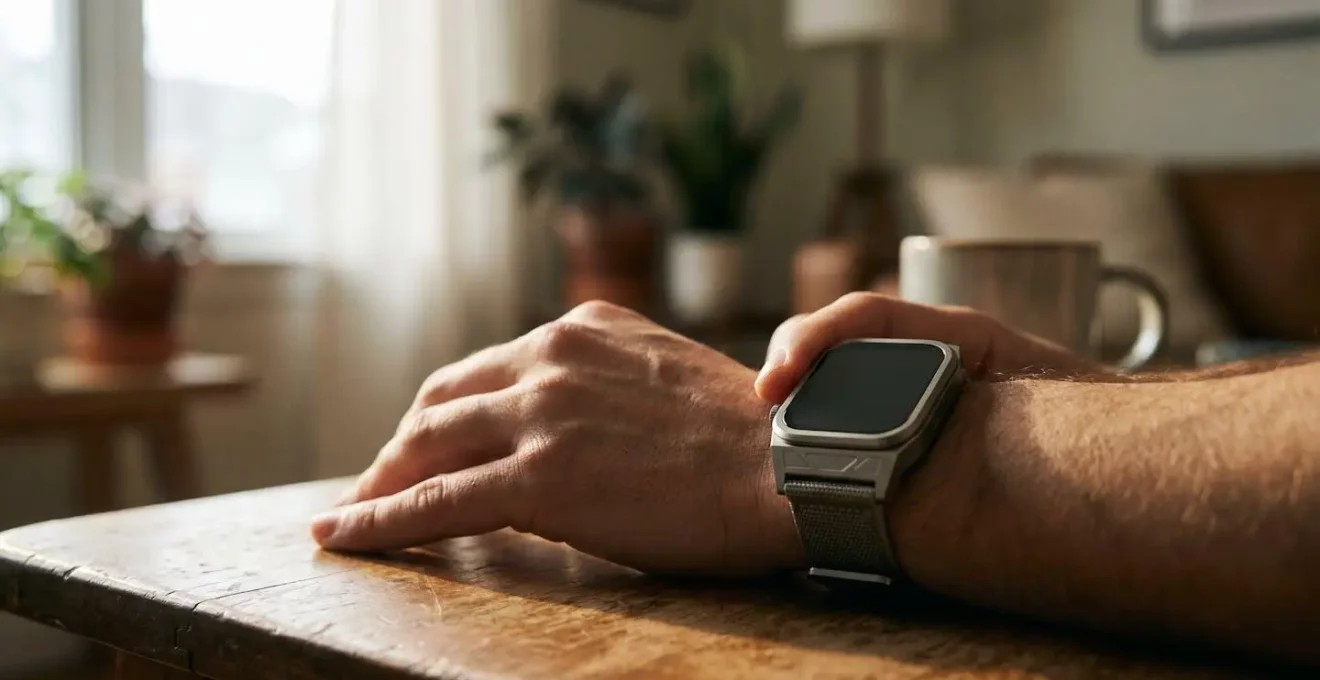
The accuracy of your wearable isn’t a fixed factory setting; it’s a dynamic state you can actively validate and improve.
- Understand the technology’s limits, such as how Photoplethysmography (PPG) sensors are affected by motion and skin tone.
- Apply context-specific configurations for activities like sleep tracking or marathon training to enhance data quality.
Recommendation: Begin by auditing one key metric that matters to you—like sleep or heart rate—using the practical validation checks outlined in this guide.
You glance at your wrist: 8,000 steps, seven hours of sleep, a resting heart rate of 58 BPM. It’s a daily ritual for millions of health-conscious UK adults. These devices promise a window into our physiological state, offering a stream of data that feels both personal and scientific. Yet, a nagging uncertainty often remains. When your watch reports a sudden heart rate spike to 180 BPM while you’re just making a cup of tea, or your sleep score feels completely disconnected from your actual energy levels, the question arises: can this data truly be trusted?
The common advice is that wearables are “good for tracking trends, not for medical accuracy.” While true, this statement is unhelpful. It leaves you, the user, in a passive role, unable to distinguish a meaningful signal from technological noise. Many articles will offer generic tips like ensuring a snug fit or keeping the software updated. These are necessary but insufficient. The key to unlocking genuine health insights isn’t just accepting the data’s limitations; it’s about actively understanding and managing them.
This guide moves beyond the platitudes. As a sports scientist focused on wearable validation, my perspective is that you can transform your device from a simple tracker into a powerful tool for actionable health intelligence. The secret lies in understanding the physiological context behind the numbers and applying simple, user-led calibration protocols. It’s about learning to be a critical interpreter of your own data, knowing when a metric is reliable and when it requires a dose of healthy scepticism.
Throughout this article, we will deconstruct the most common points of failure in wearable data, from heart rate anomalies to inaccurate sleep staging. We will provide evidence-based frameworks to configure your device for specific goals, manage its battery for continuous tracking, and protect the highly sensitive data it collects. By the end, you’ll have a scientist’s toolkit to not just read your metrics, but to truly validate them.
This guide provides a structured approach to understanding and improving the data from your health wearable. Below is a summary of the key areas we will explore, from a deep dive into specific metric accuracy to practical steps for managing battery life and privacy.
Contents: A Scientist’s Framework for Wearable Data
- Why Your Smartwatch Shows 180 BPM When You Are Standing Still?
- How to Configure Sleep Tracking That Matches Your Actual Rest Quality?
- Apple Watch or Garmin: Which Tracks Marathon Training More Reliably?
- The False Positive Alert That Sent 40% of Users to A&E Unnecessarily
- How to Extend Wearable Battery by 40% Without Disabling Key Health Sensors?
- Why Does Charging to 100% Every Night Degrade Your Battery Faster?
- How to Disable Location Tracking for Apps That Don’t Actually Need It?
- How to Audit Your Digital Footprint and Close Privacy Gaps in 30 Minutes?
Why Your Smartwatch Shows 180 BPM When You Are Standing Still?
It’s a disconcerting experience: you’re calmly standing in the kitchen, and your watch buzzes with a high heart rate alert, displaying a number you’d expect mid-sprint. This is a classic example of “noise” overwhelming the “signal.” Most wearables use an optical technology called photoplethysmography (PPG), which shines a green LED light onto your skin. The light reflects off your blood flow, and a sensor measures the changes to estimate your heart rate. While effective during rest, this method is highly susceptible to what scientists call “motion artefacts.”
Simple actions like washing your hands, typing, or even standing up too quickly can cause the watch to shift slightly on your wrist. This movement interferes with the light sensor, leading it to misinterpret the “noise” of the movement as a rapid heartbeat. This is often confused with your cadence, or steps per minute. If you are walking at a brisk 180 steps per minute, your watch can sometimes ‘lock on’ to that rhythm instead of your true heart rate. The device’s algorithm is making its best guess, but it’s not a direct measurement like a clinical electrocardiogram (ECG).
These devices collect a lot of data, and patients aren’t always sure if they can trust that information or even how to use it.
– Dr. Linda Lee, University of Iowa Health Care cardiologist interview
So, what’s the user-led calibration? First, when you see an anomalous spike, stop moving, take a few deep breaths, and check again after 30 seconds. The reading should normalise. Second, use the ECG feature if your watch has one (like on an Apple Watch or high-end Garmin). An ECG measures the heart’s electrical signals and is not prone to motion artefacts. Taking a 30-second ECG reading during a suspected false alarm will give you a medically-grade confirmation of your actual heart rate. This practice teaches you to differentiate between a genuine physiological event and a predictable sensor error.
How to Configure Sleep Tracking That Matches Your Actual Rest Quality?
You wake up feeling groggy after a restless night, but your wearable cheerfully reports a “good” sleep score of 85. This disconnect is one of the biggest sources of user frustration and distrust. While sleep tracking has improved, it remains one of the most challenging metrics for consumer devices. They use a combination of heart rate, Heart Rate Variability (HRV), movement (from an accelerometer), and sometimes breathing rate to estimate your sleep stages (Light, Deep, REM).
The clinical gold standard for sleep analysis is polysomnography (PSG), which involves monitoring brain waves (EEG), eye movements, and muscle activity in a lab. Compared to this, wrist-based trackers are making an educated guess. In fact, a 2024 meta-analysis found that consumer trackers can have an error range from 12% to as high as 180% in classifying specific sleep stages. They are generally better at distinguishing sleep from wakefulness but struggle with the nuances between light, deep, and REM sleep. A 2024 study comparing leading devices found that while some brands performed better than others, all had significant limitations compared to PSG.
To calibrate your expectations and improve accuracy, focus on two things: consistency and correlation. First, ensure your watch is snug and positioned correctly each night. Second, instead of fixating on the minute-by-minute sleep stage data, focus on the broader trends over weeks. Does a lower HRV and higher resting heart rate trend correlate with nights you felt unrested or consumed alcohol? Use a simple sleep diary for a week, noting your bedtime, wake-up time, and subjective sleep quality (on a 1-5 scale). Compare your notes to the device’s data. This “user-led validation” helps you learn your device’s specific language and identify which of its metrics (like HRV or restlessness) are the most reliable indicators of your actual rest quality.
Apple Watch or Garmin: Which Tracks Marathon Training More Reliably?
When your training involves pushing your body to its limits, data reliability isn’t just a curiosity—it’s essential for performance and injury prevention. For UK marathon runners, whether training for the London Marathon or a local race, the choice between an Apple Watch and a dedicated Garmin running watch often comes down to this very question. Both are excellent, but they are engineered with different philosophies, leading to key differences in reliability for serious endurance athletes.
An Apple Watch, especially the Ultra, is a phenomenal all-round smartwatch with strong health and fitness features. Its dual-frequency GPS is highly accurate for urban environments where satellite signals can be challenging. However, its primary limitation is battery life and a focus on broad ecosystem integration over deep training analytics. A Garmin Forerunner, on the other hand, is built from the ground up for endurance sports. It offers superior battery life, more advanced training metrics like Training Readiness and VO2 max estimations, and granular running dynamics (e.g., ground contact time, vertical oscillation).
For a marathon runner, these differences are critical. A Garmin can last for an entire multi-day event, whereas an Apple Watch will require daily charging. Furthermore, Garmin’s training metrics provide a more holistic view of your recovery and fitness progression, which is vital over a long training block. The choice depends on your “physiological context.”
This comparative table breaks down the key differences based on a recent analysis, which can guide your decision based on your specific training needs. As shown in the comparative analysis for runners, the “better” device is the one that aligns with your training intensity and data requirements.
| Feature | Apple Watch Ultra 2 | Garmin Forerunner 965 |
|---|---|---|
| GPS Battery Life | 6-7 hours continuous GPS tracking | Multiple days, 8-12+ hours for ultramarathons |
| GPS Accuracy | Dual-frequency GPS, 94% course match | Multi-GNSS support, 97% course match |
| Training Metrics | Cardio Fitness, basic running dynamics | Training Readiness, VO2 max, advanced form metrics (ground contact time, vertical oscillation) |
| Best Use Case | Urban marathon training with social integration | Long-distance trail running, ultra-marathons, serious training analytics |
| Charging Frequency | Daily charging required | Once per week average |
Ultimately, for a dedicated marathoner whose primary goal is performance optimisation, a high-end Garmin often provides more reliable, long-term training data. For the fitness enthusiast running their first marathon and wanting a versatile daily driver, the Apple Watch is a superb and sufficiently accurate choice. Your decision should be based on this trade-off between specialised analytics and all-in-one convenience.
The False Positive Alert That Sent 40% of Users to A&E Unnecessarily
One of the most powerful features of modern wearables is their ability to passively monitor for health irregularities, such as Atrial Fibrillation (AFib). These alerts have saved lives. However, they are also a significant source of false positives, causing immense anxiety and placing an avoidable strain on health services like the NHS. The headline of this section refers to early studies where a high percentage of alerts in younger, low-risk populations did not lead to a diagnosis, prompting unnecessary emergency visits.
The science behind this lies in “pre-test probability.” An AFib alert in a 75-year-old with a history of hypertension has a much higher chance of being a true positive than the same alert in a healthy 30-year-old. In younger, healthier individuals, the likelihood of a false positive is considerably higher. Indeed, a 2024 Cleveland Clinic Journal of Medicine review found that the influx of data from wearables contributes to a high rate of false positives in certain groups, increasing the burden on an already strained healthcare system. This creates a dilemma: you can’t ignore the alert, but rushing to A&E might be an overreaction.
This is where user-led calibration becomes a critical tool for managing health anxiety. Instead of panicking, you should learn to assess the context of the alert. Was it a single notification during intense exercise, or have you received multiple alerts while at rest? Applying a structured checklist can help you and your doctor determine the appropriate next step.
Action Plan: What to Do After a Wearable AFib Alert
- Assess your personal risk: Consider your age and known cardiovascular risk factors like hypertension, diabetes, or a family history of heart disease.
- Analyse the context: Was the alert a one-off event during motion, or have you received multiple alerts while resting?
- Understand your demographic’s probability: For low-risk individuals (under 40, no risk factors), the likelihood of a false positive is significantly higher.
- Evaluate high-risk signals: For high-risk individuals (over 65 with multiple risk factors), the alert holds a much greater predictive value.
- Contact the right service: Instead of going directly to A&E, contact your GP or call NHS 111 for a non-emergency evaluation unless you are experiencing severe symptoms like chest pain or shortness of breath.
- Prepare your data: If possible, save the ECG trace from your watch as a PDF to share with your healthcare provider. This provides them with valuable data for their assessment.
By following this protocol, you shift from being a passive, anxious recipient of an alert to an informed partner in your own healthcare. You provide crucial context that helps medical professionals make a more accurate assessment, ensuring you get the right care without overburdening emergency services.
How to Extend Wearable Battery by 40% Without Disabling Key Health Sensors?
Inaccurate data is useless, but no data is even worse. A common complaint is that enabling all the advanced health tracking features—like continuous SpO2 monitoring and an always-on display—drains the battery so quickly that the device is often on its charger instead of your wrist. Many users respond by disabling key sensors, defeating the purpose of having a health tracker. The solution isn’t to turn things off, but to manage them intelligently based on your daily context.
A 40% battery extension is achievable by creating scenario-based profiles rather than using a one-size-fits-all setting. Your power needs during a “Weekend Hiker” day in the Peak District are vastly different from a “Daily Commuter” day in London. For instance, continuous SpO2 (blood oxygen) monitoring is one of the biggest power drains because it uses red and infrared LEDs, which consume more energy than the standard green LEDs for heart rate. Reducing its sampling frequency from ‘continuous’ to ‘during sleep only’ or ‘on-demand’ can save significant power while still capturing the most critical data for sleep apnea screening.
Instead of disabling sensors entirely, the smarter approach is to reduce their sampling frequency. This maintains the integrity of your long-term trend data while optimising power consumption. Here are some practical profiles you can configure in your device settings:
- Daily Commuter Profile: Enable continuous HR monitoring for all-day insights, but reduce SpO2 sampling to twice a day. Disable the always-on display (using raise-to-wake is much more efficient) and limit GPS use to dedicated workout sessions.
- Weekend Hiker Profile: Maximise GPS accuracy using multi-band mode for reliable tracking in remote areas. To compensate, reduce continuous HR sampling to every 1-2 minutes during the activity and enable any extended battery modes your device offers.
- Sleep Tracker Profile: This is where you want key overnight sensors. Enable HR variability and SpO2 (set to sample every 30 mins), but disable all notifications and display-wake functions. Activating airplane mode can provide a further boost.
By tailoring your settings to your activity, you ensure the most relevant sensors are active when needed, without paying the battery price when they’re not. This proactive management ensures your device is on your wrist collecting data, not on the charger.
Why Does Charging to 100% Every Night Degrade Your Battery Faster?
We’ve been conditioned to charge our devices to 100% overnight, believing a full battery is the best way to start the day. However, for the lithium-ion batteries inside your smartwatch, this practice actively accelerates their degradation. A battery’s lifespan isn’t measured in years, but in charge cycles and, crucially, the stress placed upon its chemistry. Keeping a battery at a high state of charge (above 80-90%) for extended periods, as happens during overnight charging, is a major source of that stress.
The science is clear: lithium-ion cells experience faster capacity loss when held at the extremes of their charge state—either near 0% or at 100%. The “sweet spot” for longevity is to keep the battery operating between 20% and 80%. Charging to 100% and leaving it plugged in for hours creates a high-voltage state that permanently reduces the battery’s ability to hold a charge. Over one or two years, this can mean the difference between a watch that lasts all day and one that dies by 3 PM.
Protecting your battery’s long-term health is essential for consistent, multi-day health tracking. A degraded battery that dies mid-day invalidates your health data.
– Wearable Technology Battery Research, Consumer electronics battery lifecycle analysis
To preserve your wearable’s long-term health and ensure it can reliably track you for years, adopt the 80/20 charging rule. Most modern devices, including Apple Watch and Garmin, now include an “Optimised Battery Charging” feature that learns your routine and delays charging past 80% until just before you wake up. Make sure this is enabled.
- Instead of overnight charging, top up your device in the morning while you shower or have breakfast. A quick 30-minute charge is often enough to get you through the day.
- For multi-day UK hiking trips, such as in Snowdonia, you should fully charge to 100% before you leave for maximum duration. However, for daily use, avoid it.
- By keeping your battery within the 20-80% range most of the time, you can extend its effective lifespan by an estimated 20-30%, ensuring it remains a reliable health partner.
This simple shift in habit has a profound impact on the long-term viability of your device. A healthy battery is the foundation of reliable, continuous health tracking.
How to Disable Location Tracking for Apps That Don’t Actually Need It?
While we worry about the accuracy of our health data, we often overlook the privacy implications of the other data our wearables and their companion apps collect. Location data is among the most sensitive. When combined with health metrics, it can paint an incredibly detailed picture of your life—where you live, where you work, which doctor’s office you visit. Under the UK’s GDPR guidelines, this combination of health and location information is treated as highly sensitive personal data, and it deserves a thorough audit.
Many apps request location access without a legitimate need. A calorie-counting app, for example, has no reason to know your precise GPS coordinates. Granting blanket permission not only exposes your data unnecessarily but can also contribute to battery drain. The principle of “data minimisation”—only sharing what is strictly necessary—is key to protecting your digital footprint. Your goal should be to conduct a “location privacy audit” and set each app’s permission to the most restrictive level that still allows it to function correctly.
The path to these settings is typically: Settings > Privacy & Security > Location Services. From there, you can review each app individually. Here is a practical checklist for auditing common UK health and fitness apps:
- Running/Cycling Apps (Strava, Garmin Connect): These need location for tracking activities. Set permission to “While Using the App.” Crucially, go into the app’s own privacy settings and configure “Privacy Zones” around your home and workplace to hide the start and end points of your activities from public view.
- The NHS App: This may require location services to help you find nearby healthcare facilities. Review its permissions, but access is often legitimate. “While Using” is a safe setting.
- Period Tracker Apps: There is rarely a legitimate reason for these apps to track your location. Set this permission to “Never.”
- Mental Health & Wellbeing Apps (Calm, Headspace): Unless the app offers location-based features like finding nearby therapists, its location access should be set to “Never.”
- Calorie Counting Apps (MyFitnessPal): These apps function perfectly without knowing your location. Set permission to “Never.”
By performing this simple audit, you close significant privacy gaps and take back control over who knows where you are, without diminishing the core functionality of your most important health apps.
Key Takeaways
- Wearable accuracy is not fixed; it requires user validation by understanding the technology’s limits (e.g., PPG vs. ECG) and the physiological context of the data.
- Adopt scenario-based settings for battery and sensors, tailoring your device for specific activities like hiking or sleep to ensure continuous, reliable data collection.
- Proactively manage your data privacy by auditing app permissions, especially for sensitive location data, to align with UK GDPR principles and maintain control of your digital footprint.
How to Audit Your Digital Footprint and Close Privacy Gaps in 30 Minutes?
You’ve learned to validate your data’s accuracy and manage your device’s battery. The final piece of the puzzle is to take control of where that sensitive data goes. Your health footprint extends far beyond your wrist—it lives in the cloud, in connected apps, and potentially with third parties like health insurers. In fact, research on wearable adoption challenges shows that many users abandon their devices not just due to accuracy issues, but because of growing privacy concerns. A 30-minute annual audit is a powerful habit to ensure your data serves you, not corporate interests you haven’t approved.
In the UK, this is particularly relevant with insurance models like Vitality, which offer premium discounts in exchange for wearable data. This creates a direct trade-off between financial benefit and data privacy that every user must consciously evaluate. This audit will empower you to make that choice with your eyes open. Set a timer and follow these steps:
- Minutes 0-10: Audit Your Central Health Hub. Go to Apple Health or Google Fit and review “Apps and Services.” You’ll likely find a long list of apps you’ve granted access to over the years. Revoke access for any app you no longer use. For the rest, click into each one and review exactly what data points you are sharing.
- Minutes 10-15: Secure Your Fitness Social Networks. Open Strava, Garmin Connect, or similar apps. Check your profile visibility (is it public or private?), review your third-party app connections, and ensure your Privacy Zones are active.
- Minutes 15-20: Re-read Your UK GDPR Rights. Remind yourself that you have the right to access, rectify, and request the erasure of your personal data from any company operating in the UK. This knowledge is your power.
- Minutes 20-25: Review Insurer Data Sharing. If you use a service like Vitality or have shared data with Bupa, log in to your account and find the data-sharing dashboard. Understand what is being shared, what your opt-out options are, and how that data is used to calculate your premiums.
- Minutes 25-30: Create a Personal Data Policy. Decide and document for yourself which types of organisations you are comfortable sharing your health data with. This conscious decision-making process is the ultimate form of digital empowerment.
This structured audit transforms you from a passive data generator into an active and informed custodian of your own health information. It ensures that the insights you gain from your wearable don’t come at an unacceptable cost to your privacy.
By moving from passive data consumption to active validation and management, you fundamentally change your relationship with your wearable. Start today by performing the 30-minute privacy audit. It is the single most powerful step you can take to ensure your technology truly works for you.