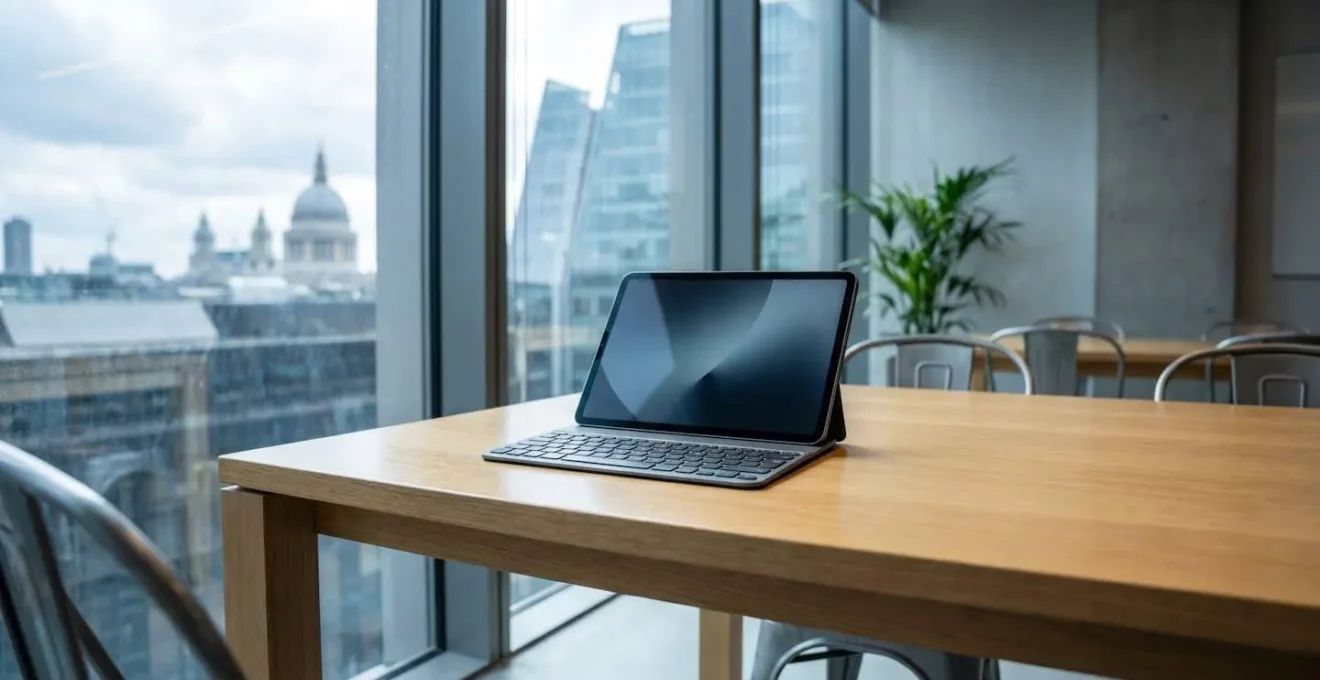
The question isn’t whether a tablet can replace your laptop; it’s about which specific workflows you can strategically ‘offload’ without hitting a hard-edge limitation.
- For many UK professionals, critical software like Excel with VBA macros remains a desktop-only reality, creating an immediate barrier.
- True productivity requires ‘ecosystem bridging’: using external monitors, cloud PCs, and desktop environments like Samsung DeX to close the functionality gap.
Recommendation: Instead of aiming for a 100% replacement, identify the 20% of your tasks that absolutely require a laptop and build a robust tablet-centric workflow for the other 80%.
The dream is seductive for any UK professional: ditching the heavy laptop bag for a sleek, lightweight tablet. The daily commute on the Northern Line or an Avanti West Coast train suddenly seems more productive, less cumbersome. With powerful processors in the latest iPads and Galaxy Tabs, and accessories like the Magic Keyboard promising a laptop-like experience, the line between device categories appears to blur. Many articles will tell you that with the right add-ons, a tablet can indeed be your new workhorse, handling emails, web browsing, and document editing with ease.
But this optimistic view often shatters against the harsh reality of professional workflows. The truth is, a successful transition isn’t about the hardware you buy; it’s about a strategic shift in mindset. It requires moving from the idea of a total “replacement” to a more nuanced strategy of “workflow offloading.” This means understanding which tasks can seamlessly move to a tablet and, more importantly, identifying the non-negotiable “hard-edge limitations”—the fundamental software and infrastructure gaps that can bring your productivity to a screeching halt. The cost of hitting one of these walls mid-project far outweighs the benefit of a lighter bag.
This guide acts as your realistic transition consultant. We will not be debating device specs. Instead, we will dissect the practical barriers and proven workarounds that define the tablet-as-a-work-computer experience in the UK. By exploring specific use cases, from spreadsheet-heavy financial tasks to remote development, we will build a pragmatic framework to help you decide if, and how, a tablet can fit into your professional life without compromising your output.
This article provides a structured look at the real challenges and solutions when considering a tablet for serious work. The following sections will guide you through the critical considerations, from software limitations to essential hardware setups.
Summary: A Pragmatic Guide to Using a Tablet for Professional Work in the UK
- Why Do Spreadsheet Power Users Still Need Laptops Despite Tablet Advances?
- How to Connect Your Tablet to a Monitor for True Desktop-Style Work?
- iPad with Magic Keyboard or Galaxy Tab S9:How to Run Desktop-Class Applications on Your Phone Without Lag?
- The File System Limitation That Traps iPad Users in Folder Chaos
- Which Tasks to Move to Tablet First for a Gradual Laptop Replacement?
- Why Samsung DeX Works Better Than Motorola Ready For for Office Tasks?
- How to Connect Your iPad to a Cloud Development Server for Full IDE Power?
- How to Replace Your Laptop with a Phone and Portable Monitor?
Why Do Spreadsheet Power Users Still Need Laptops Despite Tablet Advances?
For a significant portion of UK professionals in finance, operations, and analytics, the tablet-as-laptop dream dies within a single application: Microsoft Excel. While the mobile versions of Excel on iPadOS and Android are competent for viewing spreadsheets and performing basic edits, they lack one critical component that powers countless businesses. This is the first, and often most significant, “hard-edge limitation” many encounter. The problem isn’t the tablet’s processing power; it’s the absence of support for Visual Basic for Applications (VBA).
VBA is the scripting language that enables the automation and custom functionality that power users rely on. From bespoke financial models to automated VAT calculation reports and custom inventory management systems, these macros are the connective tissue of many UK business processes. The inability to run them on a tablet is not a minor inconvenience; it’s a complete roadblock. According to Microsoft’s official documentation, VBA runs only in desktop versions of Excel, with no support on mobile platforms.
Case Study: The UK SMB and the VBA Barrier
Consider a small UK-based e-commerce business. Their entire payroll process, including calculating National Insurance contributions and generating payslips, is handled by a custom Excel workbook built with VBA macros. When the operations manager attempts to switch to an iPad Pro for greater mobility, they discover that this essential monthly task cannot be performed. The mobile Excel app opens the file but cannot execute the macros, rendering their entire automated system useless. They are forced to retain a Windows laptop solely for this one critical, recurring task, perfectly illustrating how a single software limitation can invalidate the tablet-only ambition.
This single limitation means that for anyone whose role involves running or developing Excel macros, a tablet cannot be a primary work device. It can be a companion for reviewing data, but the core work of creation and execution remains firmly tethered to a traditional laptop or desktop. Understanding this from the outset is crucial to avoiding a costly and frustrating mistake.
How to Connect Your Tablet to a Monitor for True Desktop-Style Work?
Once you accept that a tablet is for “workflow offloading,” not total replacement, the next step is making it as efficient as possible for the 80% of tasks it *can* handle. Working for extended periods on a small tablet screen, hunched over a tiny keyboard, is neither productive nor ergonomic. The solution is “ecosystem bridging”—transforming your tablet into the brain of a proper desktop workstation. This involves connecting it to a full-size external monitor, a comfortable keyboard, and a mouse.
For UK professionals using shared workspaces like WeWork or Regus, this setup offers the best of both worlds: a lightweight device for the commute and a full-featured, ergonomic workstation at the destination. The key to this is a versatile USB-C hub. This small dongle acts as the central nervous system, providing the necessary ports to connect to standard office equipment like the Dell or HP monitors commonly found in these spaces. A good hub should offer HDMI for video output, USB-A ports for peripherals, and, crucially, USB-C Power Delivery (PD) to charge your tablet while it’s driving the entire setup.
As the image demonstrates, a proper ergonomic arrangement is essential. The tablet should be on a stand at eye level, functioning as a secondary display or simply as the processor, while you interact with a full-size keyboard and mouse. This setup not only boosts productivity but also helps comply with the principles of UK Display Screen Equipment (DSE) regulations, which aim to protect worker health. For a more permanent desk, a full docking station from brands like CalDigit or Anker can provide even more connectivity and reduce daily cable-wrangling.
iPad with Magic Keyboard or Galaxy Tab S9:How to Run Desktop-Class Applications on Your Phone Without Lag?
Even with the best external monitor setup, you will eventually hit a software wall: an application that simply does not exist or is severely underpowered on iPadOS or Android. This could be proprietary company software, a full-featured design suite, or even the desktop version of Excel needed to run those critical VBA macros. The most powerful form of ecosystem bridging to solve this is not hardware, but the cloud. By using a Cloud PC service like Microsoft 365 Cloud PC or AWS WorkSpaces, you can stream a full Windows desktop directly to your tablet.
This technology effectively turns your tablet into a “thin client,” a portal to a powerful computer running in a data centre. Suddenly, you have access to any Windows application, with proper file management and full desktop functionality. However, this introduces a new “hard-edge limitation” that is entirely out of your control: network latency. Your experience is now completely dependent on the quality and speed of your internet connection. A smooth, responsive feel requires low “ping” times to the server.
For a UK-based user, this is a critical consideration. While working from a home office with a Virgin Media gigabit connection might provide a near-native experience, the situation changes dramatically on the move. Trying to edit a complex document on a Cloud PC while on a train between Manchester and London can be an exercise in frustration, with laggy input and connection drops. Recent UK cloud latency tests show that even good connections have a baseline response time, and this can vary significantly depending on your provider and location. The dream of running AutoCAD on your iPad from a coffee shop is technically possible, but the reality is often a jittery, compromised experience.
Therefore, while Cloud PCs are a powerful tool for bridging the software gap, the “realistic consultant” view requires an honest assessment of your typical working locations. If your role demands constant access to desktop-only apps while on unreliable networks, a tablet supported by a Cloud PC is not a viable replacement for a laptop with locally installed software.
The File System Limitation That Traps iPad Users in Folder Chaos
Beyond specific app limitations, a more subtle but equally frustrating “hard-edge limitation” lies within the operating system’s core architecture, particularly on iPadOS. While the Files app has improved, it remains a far cry from the robust and flexible file management of Windows’ File Explorer or macOS’s Finder. For professionals who work with complex project structures—developers with nested code repositories, designers with linked assets, or researchers with vast libraries of documents—the sandboxed nature of iPadOS can create “folder chaos.”
Simple tasks like batch renaming files, accessing files in one app from another, or managing external drive permissions can be convoluted or impossible. This friction introduces a significant “context-switching cost.” You waste mental energy fighting the system instead of focusing on the task. This is a classic example of where a tablet *can* technically do the job, but is so inefficient that it actively harms productivity. The dream of a seamless workflow is broken by a thousand small papercuts inflicted by a restrictive file system.
However, software limitations are not the only hidden traps. A myopic focus on apps and files can lead professionals to ignore an equally critical aspect of remote work: physical ergonomics and regulatory compliance. The very portability that makes tablets attractive can also be their biggest health risk. As a UK-based health authority points out, these devices are not exempt from workplace health and safety standards.
Portable display screen equipment, such as laptops and tablets, carries the same risks as full-sized equipment, but also has added risks due to the lack of screen and keyboard separation.
– UK NHS Foundation Trust DSE Policy, Display Screen Equipment Policy – Rotherham Doncaster and South Humber NHS
This official warning highlights a crucial point: working for hours on a tablet without a proper ergonomic setup (as discussed in a previous section) is not just uncomfortable, it’s a potential health and safety issue under UK regulations. The “trap” is assuming that a mobile device frees you from the responsibilities of a safe workstation. For any UK professional or employer, this is a non-negotiable consideration.
Which Tasks to Move to Tablet First for a Gradual Laptop Replacement?
The most successful transitions from laptop to tablet follow the principle of “workflow offloading.” Instead of a dramatic, all-or-nothing switch, you strategically move low-friction tasks to the tablet first. This builds confidence, establishes new habits, and keeps your laptop available as a safety net for those “hard-edge” tasks. The goal is to identify work that benefits most from a tablet’s strengths: its portability, touch interface, and focused, single-tasking nature.
For the typical UK commuter, this strategy is particularly effective. The time spent on a train or tube can be transformed from passive screen-scrolling into a productive “triage” session. These are tasks that don’t require immense processing power, complex file structures, or a pixel-perfect monitor. They are often self-contained and can be performed efficiently, even with a spotty internet connection. This is where you begin to see a real return on your investment in a tablet.
The key is to use apps that are optimized for a touch-first, and often offline, environment. Think of it as creating a “commuter productivity package” for your tablet. A great starting point includes:
- Drafting Reports: Use offline-first writing apps like Ulysses or iA Writer. These minimalist editors remove distractions and sync automatically when you’re back online, allowing you to draft documents during your journey.
- Task Management: Manage your daily agenda in apps like Things or Todoist. Their clean, touch-friendly interfaces are perfect for organizing your day without needing a constant connection.
- PDF Review: Annotate and sign documents in GoodNotes or Notability using an Apple Pencil or S Pen. This feels far more natural than using a mouse and trackpad.
- Reading and Research: Catch up on industry articles and reports saved in apps like Pocket. This turns dead time into valuable professional development.
- Email Triage: Quickly sort, archive, and flag emails in the native mail app. The goal isn’t to write lengthy responses, but to clear your inbox so you can hit the ground running at the office.
By offloading these specific activities, the tablet becomes a powerful and complementary tool, rather than a frustrating, failed replacement for your laptop.
Why Samsung DeX Works Better Than Motorola Ready For for Office Tasks?
For Android users looking to bridge the gap to a desktop experience, not all solutions are created equal. Platforms like Samsung DeX and Motorola’s Ready For aim to transform a phone or tablet into a desktop-like environment when connected to an external monitor. However, from a realistic consultant’s perspective, the maturity and stability of the platform are paramount for serious office work. In this regard, Samsung DeX has a clear advantage born from years of iterative development.
Samsung DeX, first launched in 2017, has evolved from a novel concept into a genuinely usable productivity tool. Its key strength lies in its superior window management. DeX allows supported apps to be freely resized and moved around the screen, mimicking a traditional Windows or macOS desktop. This is essential for the multitasking that defines UK office work, such as having Outlook open alongside an Excel spreadsheet or a web browser. The platform’s cursor behaves as expected on a large display, avoiding the awkward “large dot” cursor seen in some competing solutions, which can feel imprecise.
The Maturity of DeX in Practice
A marketing manager using a Galaxy Tab S9 can connect to a monitor at their desk and immediately have their email, team chat, and project management tool open in separate, resizable windows. According to a long-term analysis from Android Authority, this true windowed functionality and consistent external display performance give DeX a significant edge over newer competitors and even Apple’s Stage Manager. In contrast, while platforms like Ready For are promising, they often exhibit more inconsistencies with app compatibility and windowing behaviour, leading to workflow friction that is unacceptable for a primary work environment.
This isn’t to say DeX is perfect, but its longer development cycle has allowed Samsung to iron out many of the initial kinks. As one tech reviewer noted, for core office activities, it has reached a level of stability that makes it a genuinely viable tool for many. For professionals invested in the Samsung ecosystem, DeX is currently the most robust and reliable option for creating a desktop-style workstation powered by a mobile device.
How to Connect Your iPad to a Cloud Development Server for Full IDE Power?
For one specific group of UK professionals—software developers—the “hard-edge limitation” of a tablet is absolute. The sandboxed nature of iPadOS and the lack of professional-grade compilers and local server environments make it impossible to run a traditional Integrated Development Environment (IDE) like VS Code or IntelliJ locally. This single issue has historically made tablets a non-starter for serious coding. However, powerful “ecosystem bridging” through cloud-based development environments has changed the game.
Services like GitHub Codespaces, AWS Cloud9, and Gitpod allow developers to run their entire development environment on a remote server and access it through a web browser on their iPad. This provides the full power of a desktop IDE, complete with terminal access, debugging tools, and extension support, all streamed to the tablet. The iPad essentially becomes a high-resolution, touch-enabled terminal for a powerful Linux machine in the cloud.
But just like with Cloud PCs, this solution trades a software limitation for an infrastructure dependency: network latency. For a developer, a laggy connection isn’t just annoying; it breaks concentration and can make typing code feel sluggish and unresponsive. The physical distance to the data centre matters. Therefore, choosing a cloud provider with a strong presence in the UK or Europe is non-negotiable. This ensures the round-trip time for each keystroke is minimised.
As the following data from a detailed analysis of cloud latency shows, performance can vary between providers, making the right choice critical for a smooth workflow.
| Cloud Platform | UK Latency | Best Use Case for iPad Development |
|---|---|---|
| Google Cloud Platform (GCP) | 70ms average | Best for API-heavy workloads and media delivery; GitHub Codespaces hosted on GCP |
| AWS (Europe London Region) | Variable, public network dependent | Wide service availability; suitable for AWS WorkSpaces and Cloud9 IDE |
| Azure (UK regions) | Strong Europe performance | Ideal for Microsoft 365 Cloud PC and hybrid Windows development setups |
This setup allows a UK developer to work from anywhere with a solid internet connection, turning their iPad into a surprisingly capable development machine. It’s a prime example of identifying a hard-edge limitation and using a specific cloud-based tool to bridge the gap effectively.
Key takeaways
- The goal isn’t total laptop replacement, but strategic ‘workflow offloading’ of suitable tasks to a tablet.
- Identify your non-negotiable ‘hard-edge limitations’ (like VBA macros in Excel) before you invest in hardware.
- Bridge functionality gaps with an ‘ecosystem’ of hardware (monitors, hubs) and cloud services (Cloud PCs, IDEs), but be aware of their own limitations like network latency and power drain.
How to Replace Your Laptop with a Phone and Portable Monitor?
Pushing the mobile-only concept to its logical extreme involves leaving the tablet behind entirely and using a modern smartphone, like a Samsung Galaxy, as the brain for a portable workstation. Paired with a slim, USB-C portable monitor, this setup represents the ultimate in lightweight, minimalist work. Using a desktop environment like Samsung DeX, you can have a multi-window, desktop-like experience powered entirely by the device in your pocket. This is the pinnacle of “workflow offloading” for the truly mobile professional.
However, this setup introduces the final and most fundamental “hard-edge limitation” of all: power management. A smartphone is not designed to power itself, its own high-resolution screen, and an external 15-inch monitor simultaneously. Connecting a portable monitor directly to your phone’s USB-C port will drain your phone’s battery at an alarming rate, often lasting no more than a couple of hours. This makes the setup unviable for a full day of work without a clear power strategy.
Successfully running this ultra-mobile workstation requires a conscious and disciplined approach to managing every watt of energy. It’s not as simple as just plugging things in; you need a system. This involves selecting the right gear and understanding the power flow between your devices to avoid being left with two dead screens halfway through your workday.
Action Plan: Power Management for a Phone-Based Workstation
- Assess Power Drain: Before relying on the setup, run a test to understand how quickly your specific phone and portable monitor combination drains the battery during a typical work session. This is your baseline.
- Choose Self-Powered Monitors: When purchasing a portable monitor, prioritise models with their own built-in batteries (e.g., certain models from Arzopa or Uperfect). This dramatically reduces the power drain on your phone.
- Invest in a High-Capacity Power Bank: A dedicated, high-capacity power bank (from brands like Anker or Shargeek) is non-negotiable. It must have enough capacity and output to power both your phone and monitor for a full day.
- Carry a Compact GaN Charger: For breaks in coffee shops or lounges, a small Gallium Nitride (GaN) charger is essential for rapidly topping up your power bank, phone, and monitor simultaneously.
- Verify Power Delivery Passthrough: If you use a USB-C hub to connect peripherals, ensure it has a Power Delivery (PD) port that can pass power through to the phone while the monitor is connected.
Before you invest in an expensive tablet and accessories, the most critical step is to perform an honest audit of your own daily tasks. Identify your personal “hard-edge limitations” and decide if the workarounds are practical for you. Starting this self-assessment is the first, most important step in building a mobile workflow that actually works.