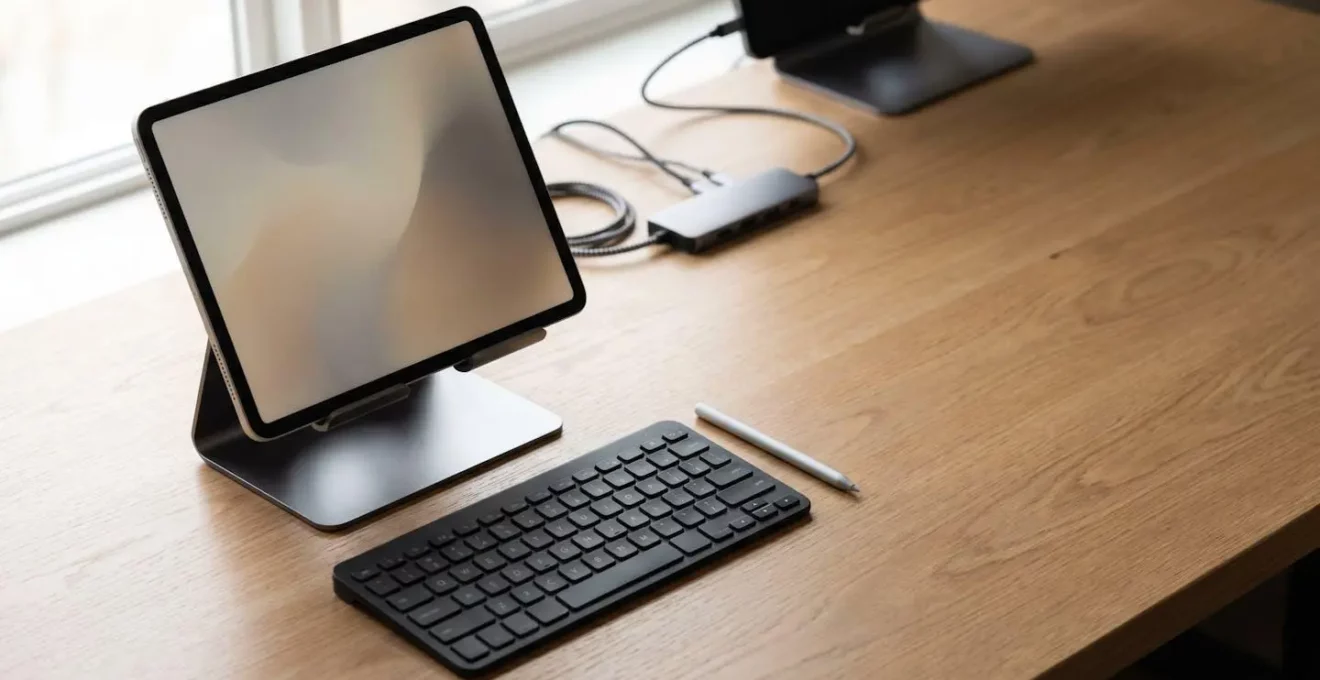
Achieving a true one-device workflow isn’t about buying the most powerful tablet, but mastering strategic configuration to overcome inherent OS limitations.
- iPadOS prioritises smooth, single-app experiences at the cost of professional multitasking and background processes, creating workflow friction.
- Windows on a Surface Pro offers desktop-class power and file management but can compromise on tablet-first app design and battery efficiency.
Recommendation: Define your primary workflows (e.g., Design, Code, Present) and build dedicated Focus Modes and accessory kits for each, rather than seeking a single “perfect” setup.
As a freelancer or consultant, the dream is a single, elegant device that fluidly transforms to meet every demand of your day. You picture yourself sketching a design concept for a client, then seamlessly switching to code a backend function, and finally, presenting a polished proposal—all on one tablet. The hardware, whether it’s an M4-powered iPad Pro or a sleek Surface Pro, certainly promises this reality. Yet, the lived experience is often one of frustration, a series of small but significant hurdles that break your concentration and disrupt your flow.
The common advice revolves around buying the right keyboard or stylus, but this barely scratches the surface. The real challenge isn’t in the hardware’s capability but in the deeply ingrained philosophy of the operating system. You are not just choosing between Apple and Microsoft; you are choosing between two fundamentally different approaches to work. One prioritises focused, sandboxed simplicity, while the other champions open-ended, desktop-class complexity. Neither is inherently better, but failing to understand their trade-offs is the primary reason your powerful tablet often feels less capable than a laptop half its price.
This guide moves beyond a simple features comparison. We will adopt the mindset of a workflow consultant, dissecting the OS philosophies that govern your device. We will explore how to build a strategic system of intentional compromises and role-specific configurations. The goal is not to find the mythical “perfect” device, but to master the one you have by bending its software to your will, transforming it from a source of friction into a true, multi-role professional tool.
This article provides a structured approach to configuring your single-device setup. The following sections break down the core conflicts, strategic choices, and essential accessories required to build a genuinely versatile workflow.
Summary: A Consultant’s Guide to Single-Device Professional Workflows
- Why Does Your iPad Pro Struggle with the Same Tasks Your MacBook Air Handles?
- How to Switch Between Designer, Writer, and Presenter Modes Instantly?
- iPad Pro or Surface Pro: Which Handles More Professional Workflows?
- The iPadOS Limitation That Breaks Professional Workflows Every Update
- Which Accessories Transform a Basic Tablet into a Full Workstation?
- Which Accessories to Pack for Productive Work from Hotels, Cafes, and Trains?
- LumaFusion or DaVinci Resolve iPad: Which Handles Professional Colour Work?
- How to Replace Your Laptop with a Phone and Portable Monitor?
Why Does Your iPad Pro Struggle with the Same Tasks Your MacBook Air Handles?
The paradox of the modern iPad Pro is that its incredible hardware power is often neutered by its software philosophy. You have a chip faster than many laptops, yet simple tasks like exporting a video while checking an email can fail. The root cause is not a lack of power but the fundamental design of iPadOS, which evolved from a mobile-first, single-task-oriented system. Unlike macOS or Windows, iPadOS is ruthlessly aggressive in managing system resources to preserve a sense of immediate fluidity and extend battery life. This translates to a background task execution limit of around 30 seconds for most apps before the system can suspend or terminate them.
This “OS philosophy” creates what professionals experience as workflow friction. Consider the real-world scenario of being on a Zoom call. If you switch to your email app to find a crucial piece of information, iPadOS may pause your video feed to the other participants. Worse, by the time you switch back, the memory pressure from Zoom might have forced your email app to reload, losing the very email you were looking for. This constant app reloading and loss of background context is the “death by a thousand papercuts” that makes sustained, complex work frustrating.
A MacBook Air, even with less raw power, never subjects you to this. Its operating system is built on the premise that multiple processes should run concurrently without interruption. This fundamental difference in philosophy is why your iPad Pro, despite its pro-level branding and price, can feel less professional than a standard laptop. It is designed for focused, foreground tasks, and struggles when a professional workflow demands that multiple plates keep spinning simultaneously.
How to Switch Between Designer, Writer, and Presenter Modes Instantly?
Since a single “default” tablet setup is doomed to fail across multiple professional contexts, the solution is to embrace configuration as a strategy. Instead of one messy home screen, you must create several clean, purpose-built environments. This is where Apple’s Focus Modes (or similar Bixby Routines on Samsung devices) transform from a consumer feature into a powerful professional tool. The goal is to create distinct “modes” for each of your core roles: Designer, Coder, Writer, Presenter.
A “Designer Mode” might feature a home screen populated only by Procreate, Figma, and your favourite colour palette apps, with notifications silenced for everything except your project management tool. In contrast, “Presenter Mode” would bring your presentation app, notes, and calendar to the forefront, silencing all notifications except for meeting alerts. Each mode gets its own dedicated home screen layout, wallpaper, and notification rules, creating a distinct digital workspace. This provides an immediate visual and functional cue, helping your brain context-switch as you move from one task to the next.
This visual separation is key to reducing cognitive load. The abstract transformation between these modes is not just about convenience; it’s about building a system that actively supports your mental state for the work at hand.
Automating the switch is the final step to making this system feel instant. You can link these modes to specific times (e.g., “Writer Mode” from 9-11 am), locations (activating “Presenter Mode” when you arrive at a client’s office), or even the connection of a specific accessory, like a keyboard. This proactive configuration turns your tablet from a jack-of-all-trades into a master of one—whichever one you need it to be at that precise moment.
iPad Pro or Surface Pro: Which Handles More Professional Workflows?
The choice between an iPad Pro and a Surface Pro is the ultimate expression of the OS philosophy conflict. It’s not about which device is “better,” but which set of intentional compromises you are willing to make. The Surface Pro runs full-fat Windows, giving you unparalleled access to desktop software, true multi-window multitasking, and a familiar file system. The iPad Pro runs iPadOS, offering a superior library of touch-first creative apps, a more secure and stable environment, and significantly better battery efficiency. To choose, you must analyse your dominant workflows with brutal honesty.
For a backend developer, the Surface Pro is the clear winner. It can run desktop IDEs, local servers, and containerisation tools like Docker—tasks that are either impossible or require convoluted workarounds on an iPad. For a corporate consultant whose life revolves around complex Excel spreadsheets with macros and proprietary desktop software, the Surface is the only viable option. However, for a digital illustrator or photo editor, the iPad Pro’s combination of the Apple Pencil 2, colour-accurate display, and a rich ecosystem of apps like Procreate and Affinity Photo provides a demonstrably superior creative experience.
The decision tree becomes complex when your roles are split, as is common for freelancers. The best approach is to score each platform against your specific needs, as this detailed workflow versatility scorecard reveals.
| Workflow Category | iPad Pro M4 Score | Surface Pro 11 Score | Critical Differentiator |
|---|---|---|---|
| Design & Creative Work | 9/10 | 7/10 | iPad: Superior stylus experience, colour-accurate OLED display; Surface: Full desktop Creative Suite access |
| Backend Coding & Development | 4/10 | 8/10 | iPad: Limited to web IDEs and SSH clients; Surface: Full desktop IDEs, compilers, Docker support |
| Client Presentations | 9/10 | 9/10 | Both excel: iPad has smoother animations; Surface has broader file format compatibility |
| File Management & Organization | 5/10 | 9/10 | iPad: Mobile-style Files app with limitations; Surface: Full Windows Explorer with deep folder control |
| Battery Life (All-Day Work) | 9/10 | 6/10 | iPad: Fanless M4 efficiency; Surface: Faster drain with standard Windows workflows |
| Multitasking & Background Tasks | 4/10 | 9/10 | iPad: Aggressive app suspension; Surface: Desktop-class multi-window management |
Ultimately, the scorecard highlights that neither device is a perfect 10 across the board. Choosing a Surface Pro means accepting a weaker touch-first app ecosystem and shorter battery life. Choosing an iPad Pro means accepting significant limitations in file management, background processing, and software availability. Your choice defines the compromises you’ll have to manage.
The iPadOS Limitation That Breaks Professional Workflows Every Update
With each new iPadOS release, users hope for the one change that will finally unlock true “pro” multitasking. Yet, year after year, the most critical limitation remains: the system’s aggressive suspension of background tasks. This isn’t a bug; it’s a core feature of the iPad’s OS philosophy, designed to ensure the foreground app is always responsive and battery life is maximised. For a professional workflow, however, this feature is a constant source of failure.
The most telling example comes from Apple’s own professional software. A video editor using Final Cut Pro on a top-of-the-line M4 iPad Pro might start a 20-minute video export. If they then switch to another app for just a moment—perhaps to reply to an urgent message or even by accidentally tapping a notification—the entire export process is cancelled without warning. The system sees the export as a background task and, to preserve resources, simply terminates it. This behaviour, which would be unthinkable on a MacBook from a decade ago, is standard on a 2024 iPad Pro, even one with 16GB of RAM.
This single issue encapsulates the deep-seated disconnect between the “Pro” hardware and the OS’s mobile roots. It forces the user to adapt their behaviour in unnatural ways, such as leaving the tablet untouched and screen-on for the duration of any long process. It breaks trust in the device’s ability to handle unattended tasks, a cornerstone of any professional computing workflow. This fundamental limitation, which reports suggest might persist until 2025, is the primary reason many professionals, despite being drawn to the iPad’s form factor, ultimately return to a traditional laptop.
Which Accessories Transform a Basic Tablet into a Full Workstation?
A tablet alone is just a content consumption device. It’s the ecosystem of accessories that transforms it into a viable workstation. However, simply buying a keyboard and a stylus isn’t enough. Building a true workstation requires a strategic approach to connectivity, ergonomics, and power, all centred around a high-quality USB-C hub.
The hub is the brain of your setup. A cheap, underpowered hub will lead to flickering external monitors, slow data transfers, and peripherals that disconnect intermittently—the reality of ‘dongle life’. A professional-grade hub, however, becomes an invisible foundation. It must provide at least 100W Power Delivery (PD) passthrough to charge your tablet while driving all peripherals, a Gigabit Ethernet port for stable network connections, and 4K HDMI output at a smooth 60Hz, not a stuttering 30Hz. For creatives, fast SD card readers are non-negotiable.
Beyond the hub, ergonomics are paramount. Hunching over a flat tablet for hours is a recipe for neck and back pain. The “ergonomic triangle” consists of three key components: an elevated stand to bring the screen to eye level, an external keyboard for comfortable typing, and an external mouse or trackpad for precision input. This setup decouples the screen from the input devices, mimicking the comfortable posture of a desktop workstation.
This careful selection of accessories is what truly bridges the gap between a mobile device and a professional tool. It acknowledges the tablet’s physical limitations and compensates for them with a purpose-built system, allowing you to maintain productivity and comfort over long work sessions.
Your Action Plan: Hub & Peripherals Ecosystem Checklist
- USB-C Hub Core Requirements: Ensure minimum 100W Power Delivery passthrough, a Gigabit Ethernet port (1000Mbps), and SD/microSD card readers (UHS-I 104MB/s minimum).
- Display Connectivity: Verify the hub offers 4K HDMI output at 60Hz. Check for DP Alt Mode support if your specific tablet requires it.
- Data Transfer Ports: Look for at least two USB-A ports (5Gbps+) for legacy devices and one high-speed (10Gbps) USB-C data port for external SSDs.
- Build Quality Indicators: Prioritise premium aluminium construction for heat dissipation and hubs with short, thick cables to ensure stable signal integrity.
- Compatibility Verification: Before buying, confirm the hub is certified for your tablet model (e.g., iPad Pro M4, Surface Pro 11) and check for known incompatibilities with your charger or monitor, as detailed in this comprehensive checklist for power users.
Which Accessories to Pack for Productive Work from Hotels, Cafes, and Trains?
Your elegant home workstation can quickly dissolve into a tangled mess of cables when you’re on the road. A mobile productivity kit isn’t just a smaller version of your desk setup; it’s a system built around resilience and redundancy. As a travelling professional, you must plan for failure: the cafe Wi-Fi will drop during a client call, your only charging cable will fray, the hotel room will have one poorly placed power socket.
Your strategy should centre on a “Dual Charger” system: a primary 100W GaN charger that can power your entire setup, and a tiny, pocketable 30W charger as an emergency backup. The same logic applies to cables; pack two high-quality, data-and-power-rated USB-C cables of different lengths. For connectivity, don’t rely on public networks. A portable travel router that can create a secure private network from a hotel Ethernet port is a baseline security measure. The ultimate backup is a dedicated 4G/5G mobile hotspot, ensuring you’re always online for critical tasks.
As security expert Jack Wallen notes, this isn’t just about convenience; it’s about professional security and control over your digital environment.
A USB-C travel router gives me an extra layer of security and control over my connection as I hop between cafés, hotels, and coworking spaces. This setup reduces exposure to malicious hotspots, data breaches, and poorly configured public networks.
– Jack Wallen, MakeUseOf
Finally, don’t underestimate the power of analog. A quality pen and a small notebook (like a Field Notes) are the ultimate backup. They require no power, have no connectivity issues, and are often faster for jotting down a quick note or sketching a UI idea during a conversation than any digital equivalent. Your travel kit should be a thoughtful balance of high-tech solutions and low-tech reliability.
LumaFusion or DaVinci Resolve iPad: Which Handles Professional Colour Work?
For creative professionals, particularly those in video, the tablet’s display technology has outpaced its software ecosystem. The Tandem OLED on the M4 iPad Pro is a phenomenally colour-accurate panel, but a great screen is useless if the software can’t leverage it for professional colour grading workflows. The choice between the two leading video editing apps on iPad, LumaFusion and DaVinci Resolve, once again comes down to OS philosophy and ecosystem integration.
LumaFusion has long been the king of mobile video editing. It is a fantastic, self-contained application that is powerful and intuitive. However, its strength is also its weakness: it is a “self-contained island.” Projects are largely trapped within the app, with limited options for round-tripping to a desktop system for finishing. DaVinci Resolve for iPad, while perhaps less mature as a standalone mobile app, is built on a completely different philosophy. Its killer feature is its seamless integration with its desktop counterpart via Blackmagic Cloud. A colourist can begin grading footage on an iPad Pro in Reference Mode—a setting that locks the display to the P3 colour space for professional accuracy—and a lead editor can then open the exact same project on a powerful desktop Mac or PC moments later to continue the work.
To do colour-critical work on an iPad, a strict workflow must be followed:
- Enable Reference Mode: In Settings, this is the only way to ensure colour accuracy that approaches a calibrated professional monitor.
- Use a Pro-Grade App: DaVinci Resolve’s desktop heritage means it handles professional codecs like BRAW and ProRes RAW more robustly.
- Integrate with Desktop: Use Blackmagic Cloud to sync projects, allowing you to use the iPad for its strengths (portability, great screen) and the desktop for its strengths (raw power, full plugin support).
- Manage Performance: Even on an M4, editing high-resolution 4K/6K footage requires a proxy workflow to maintain smooth performance, switching back to the original files only for the final colour grade and export.
In this context, DaVinci Resolve isn’t just an app; it’s a portal into a wider professional ecosystem, making it the superior choice for any workflow where colour accuracy and collaboration are key.
Key takeaways
- The primary barrier to a single-device workflow is software philosophy (iPadOS vs. Windows), not hardware power.
- True versatility comes from strategic configuration, using Focus Modes and purpose-built accessory kits for each professional role.
- Choosing a device is an act of intentional compromise; you must align the OS’s strengths (e.g., iPad’s creative apps, Surface’s desktop power) with your most critical workflows.
How to Replace Your Laptop with a Phone and Portable Monitor?
For the ultimate minimalist, the holy grail is to ditch the tablet entirely and run a complete workstation from a smartphone and a portable monitor. This setup promises a full-screen desktop experience powered by the device that’s already in your pocket. However, the viability of this dream depends almost entirely on one thing: your phone’s operating system and its ability to project a true desktop interface, not just a mirror of your phone screen.
This is where Samsung’s DeX (Desktop Experience) platform stands in a class of its own. When a compatible Samsung Galaxy phone is connected to an external display, DeX provides a genuine desktop environment with a taskbar, overlapping and resizable windows, and right-click context menus. You can run a full desktop version of the Chrome browser with extensions, manage files in a familiar explorer window, and use keyboard shortcuts as you would on a laptop. In contrast, connecting an iPhone to an external monitor simply mirrors the standard iOS interface—a scaled-up version of what’s on your phone screen, without windowing, a taskbar, or true multitasking. It’s a larger view, not a different way of working.
This distinction is critical. A DeX setup allows a developer to have a code editor open in one window, a terminal in a second, and technical documentation in a third. An iPhone setup can only show one of those full-screen at a time. The bottleneck, however, often comes down to power management. Powering a phone, a portable monitor, and peripherals simultaneously from a single port creates a complex challenge that requires a carefully selected, high-wattage USB-C hub capable of managing power and data without throttling any component.
While not yet a perfect replacement for all workflows, the phone-and-monitor setup, led by platforms like Samsung DeX, represents the most aggressive form of workflow convergence. It proves that the future of mobile productivity is less about the screen size of a single device and more about the intelligence and flexibility of its operating system.
Ultimately, transforming a single device into a multi-role workstation is an exercise in strategic planning. By analysing your workflows, understanding the core philosophies of your chosen OS, and investing in a purpose-built ecosystem of accessories and configurations, you can move beyond the frustration and build the fluid, powerful, and truly personal computer that modern hardware promises.