Computer Hardware
Every device you use—whether a smartphone, laptop, or desktop workstation—relies on a complex orchestra of physical components working in harmony. Understanding computer hardware isn’t just for enthusiasts building custom rigs; it’s essential knowledge for anyone making purchasing decisions, troubleshooting performance issues, or planning upgrades. The difference between a system that feels sluggish after six months and one that remains responsive for years often comes down to understanding how these components interact.
Hardware evolves relentlessly, with new processor architectures, memory standards, and storage technologies arriving regularly. Yet beneath the marketing claims and specification sheets lie fundamental principles that remain constant: thermal management determines sustained performance, component compatibility defines upgrade paths, and understanding bottlenecks prevents wasted investment. This guide breaks down the essential hardware categories, explains what truly matters for real-world performance, and equips you with the knowledge to make confident decisions.
Understanding Processors: Efficiency, Architecture, and Real Performance
The processor—or CPU—serves as your system’s brain, executing instructions and coordinating all other components. Modern processor performance isn’t simply about clock speed; it’s a delicate balance between architectural efficiency, manufacturing process, and thermal constraints that determines how your device actually performs during sustained workloads.
Why Newer Chips Run Cooler Yet Faster
Recent processor generations achieve remarkable efficiency gains through smaller manufacturing processes. A chip built on a 3nm process consumes approximately 30% less power than its 5nm equivalent at the same performance level, or delivers significantly higher performance within the same thermal envelope. Think of it like redesigning an engine to extract more power from each drop of fuel—the fundamental work capacity increases while waste heat decreases.
This efficiency translates directly to user experience. Laptops maintain peak performance longer before thermal throttling forces slowdowns, and battery life extends substantially during everyday tasks. The cooling systems that struggled to manage previous-generation chips suddenly have thermal headroom to spare.
Power Modes and Practical Performance Management
Most modern processors support multiple power states, shifting between high-performance and efficiency modes based on workload. Learning to manually switch these modes can double battery life during travel without noticeably impacting light tasks like document editing or web browsing. The performance cost is negligible for non-intensive work, but the power savings compound significantly over a full workday.
Platform choice—Apple Silicon versus Intel versus AMD—increasingly determines your ecosystem rather than just raw performance. Each architecture excels in different scenarios: Apple’s unified memory architecture benefits creative workflows with tight CPU-GPU integration, while traditional x86 platforms offer broader software compatibility and easier component upgrades.
Display Technology: Resolution, Refresh Rates, and Colour Accuracy
Your display serves as the primary interface between digital information and human perception, yet it’s often the most misunderstood component. Resolution numbers tell only part of the story; pixel density, refresh rates, and colour calibration fundamentally shape visual quality and workflow efficiency.
Why Text Sharpness Varies Between Displays
A MacBook’s Retina display often renders text more sharply than external 4K monitors due to subpixel rendering optimisation and pixel density relative to viewing distance. Operating systems render text differently based on display characteristics, and scaling algorithms introduce varying degrees of clarity loss. Native resolution provides maximum sharpness but may render interface elements impractically small, forcing a choice between crisp-but-tiny or slightly-soft-but-readable.
For colour-critical work, display profiling becomes essential. Consumer displays typically arrive with colour temperature and gamma settings optimised for general use rather than print-accurate reproduction. Features like True Tone—which adapt colour temperature to ambient lighting—improve subjective viewing comfort but introduce colour shifts that corrupt photo editing and design work. Disabling these adaptive features and using hardware calibration ensures the colours you see match final output.
Refresh Rate Impact on Professional Work
Higher refresh rates like 120Hz ProMotion provide smoother motion and reduced latency that benefits certain workflows more than others. Interface animations feel more fluid, and pen input on touchscreens responds with lower lag. For static design work, the advantage diminishes compared to colour accuracy and resolution, but video editors working with timeline scrubbing notice the immediate responsiveness improvement.
Graphics Processing: GPU Architecture and Acceleration Frameworks
Graphics processors have evolved far beyond rendering games; they now accelerate countless professional tasks through parallel processing. Understanding when and how your system uses GPU resources prevents the common scenario where an expensive graphics card sits idle while your CPU struggles with tasks the GPU could handle in a fraction of the time.
Modern creative applications offload specific tasks to the GPU: video encoding, colour grading, 3D rendering, and effects processing all benefit dramatically from GPU acceleration. A render that consumes hours on CPU alone might complete in minutes when properly delegated to a capable graphics card. However, software must explicitly support GPU acceleration and use compatible frameworks—NVIDIA’s CUDA, Apple’s Metal, or OpenCL.
Dedicated Versus Integrated Graphics
Many systems include both integrated graphics (built into the processor) and a dedicated GPU, but default to the less-powerful integrated chip for power efficiency. Creative applications sometimes fail to automatically switch to the dedicated GPU, leaving performance on the table. Manually forcing specific applications to use the dedicated GPU through system settings eliminates this bottleneck.
Graphics cards also suffer from thermal throttling when cooling proves inadequate. A GPU that appears powerful on paper may reduce clock speeds by 30% or more after just ten minutes under sustained load if airflow is restricted or thermal paste has degraded. Regular cleaning and monitoring temperatures prevents this silent performance degradation.
Storage Evolution: From Spinning Disks to PCIe Gen 5 SSDs
Storage technology has undergone the most dramatic performance transformation of any component category. The jump from traditional hard drives to NVMe SSDs represents a hundredfold speed increase—games that required 45 seconds to load now launch in under three seconds. Yet not all SSDs deliver equivalent performance despite similar marketing claims.
NVMe drives connect via PCIe lanes, and the generation (3.0, 4.0, or 5.0) determines theoretical maximum bandwidth. However, real-world performance depends on controller quality, NAND type, and DRAM cache presence. Budget drives may achieve impressive sequential read speeds in benchmarks but stumble during sustained writes or random access patterns that characterise actual use.
Understanding SSD Performance Degradation
SSDs exhibit a critical performance threshold: filling them beyond approximately 90% capacity can slow write speeds to hard drive levels. The controller requires free blocks for wear levelling and garbage collection; when space runs tight, these background operations interfere with active tasks. Maintaining at least 10-15% free space preserves performance long-term.
Storage speed also degrades over time through NAND wear and fragmentation. Checking whether your drive maintains its rated speed reveals whether it’s time for replacement before catastrophic failure occurs. Tools built into operating systems or provided by manufacturers measure current performance against specifications.
Memory Architecture: RAM Types, Speeds, and Configurations
System memory might seem straightforward—more is better—but configuration choices significantly impact both performance and upgrade costs. Understanding dual-channel architecture, speed versus capacity trade-offs, and compatibility requirements prevents common mistakes that leave performance unrealised or necessitate expensive replacements.
Memory operates most efficiently in dual-channel mode, where two matched sticks work in parallel to double effective bandwidth. A single 16GB stick performs measurably worse than two 8GB sticks in most scenarios—the difference can affect gaming frame rates by 20% or more. Populating memory slots correctly ensures the motherboard activates dual-channel mode.
DDR4 Versus DDR5: When Does Generation Matter?
Newer DDR5 memory costs substantially more than mature DDR4 while providing minimal real-world improvement for many tasks. The theoretical bandwidth advantage rarely translates to noticeable performance gains in gaming or general productivity. DDR5 makes sense when building systems intended for long-term relevance, but represents questionable value for immediate performance needs.
Memory speed ratings like 3600MHz require manual activation through XMP profiles in BIOS settings—without this step, high-speed RAM runs at conservative default speeds, negating the premium you paid. Some motherboard-CPU combinations also exhibit sensitivity to memory speeds, with certain configurations causing boot failures until speeds are reduced or timings adjusted.
Building Future-Proof Systems: Upgrade Paths and Component Longevity
Constructing or purchasing a system that remains relevant for seven or more years requires thinking beyond current specifications to upgrade trajectories and component interdependencies. Platform choices made today determine which upgrades become possible tomorrow, and some decisions lock you into paths that become costly to escape.
Choosing between AMD and Intel processors also selects your motherboard socket, which determines CPU upgrade options for several years. AMD historically maintains socket compatibility longer, allowing processor upgrades without motherboard replacement. Intel typically requires new motherboards for each generation. This seemingly technical detail translates directly to upgrade costs down the line.
Budget Allocation Strategy
When working with fixed budgets, distributing funds across CPU, GPU, and RAM requires understanding which components will bottleneck soonest for your specific workload. A balanced approach prevents the common mistake of pairing a premium processor with inadequate RAM or storage that immediately constrains its potential. For creative work, GPU and fast storage often deliver more noticeable improvements than marginal CPU gains.
Power supply selection impacts future graphics card upgrades. A system built with a 500W unit to meet current needs may require complete PSU replacement when upgrading to a more power-hungry GPU generation. Purchasing slightly more capacity initially—say 750W instead of 500W—costs minimally more upfront but preserves upgrade flexibility for years.
Component Compatibility and Bottleneck Management
Modern systems function as ecosystems where replacing one component often necessitates changing others due to physical, electrical, or performance compatibility requirements. Understanding these interdependencies prevents the frustration of purchasing an upgrade that won’t fit, won’t work, or won’t deliver expected improvements.
A new high-end GPU paired with an aging CPU frequently creates a bottleneck scenario where the processor can’t feed data quickly enough to keep the graphics card fully utilised. The expensive GPU sits partially idle, unable to deliver the performance jump its specifications suggest. Balanced upgrades that address the weakest component in your performance chain deliver better value than maximum-spec individual parts mismatched to the rest of the system.
Physical Compatibility Considerations
Case size determines more than aesthetics—it constrains cooling options and component dimensions. Mini-ITX builds save space but limit GPU length, restrict CPU cooler height, and typically support fewer storage drives. These constraints don’t just affect initial builds; they limit future upgrade options. A larger ATX case provides flexibility to accommodate components several generations ahead.
Pre-built systems from major manufacturers often use proprietary components with non-standard dimensions or connectors. This OEM trap makes standard retail components incompatible, forcing expensive manufacturer-specific replacements or complete system rebuilds when upgrades become necessary. Tracking exact specifications of your current components ensures purchased upgrades will physically fit and electrically connect.
Drivers and Software: The Hidden Performance Layer
Hardware components rely on driver software to communicate with the operating system and applications. Driver quality determines whether your components perform to specification or underdeliver despite capable hardware. A free driver update can resolve months of mysterious crashes, performance issues, or compatibility problems—or conversely, a problematic update can introduce new instabilities.
Graphics drivers particularly impact performance, with the wrong version potentially cutting frame rates by 30% or more compared to optimal releases. Driver updates often include game-specific optimisations and bug fixes, but occasionally introduce regressions. Manufacturer downloads typically provide newer, more optimised drivers than Windows Update’s generic versions, though the latter prioritise stability over cutting-edge features.
Managing Driver Updates Strategically
When systems operate stably, delaying driver updates until specific issues arise or new software requires them reduces the risk of update-induced problems. Conversely, troubleshooting existing issues often begins with fresh driver installations that remove corrupted files or incompatible settings. Knowing how to restore previous driver versions when updates cause problems provides essential insurance against update-related instability.
Multi-monitor configurations sometimes trigger driver conflicts that cause random crashes or display corruption. These issues often relate to refresh rate mismatches, resolution scaling differences, or power management features interacting poorly across displays. Methodically adjusting settings one variable at a time isolates the trigger.
Computer hardware mastery isn’t about memorising specifications—it’s understanding how components interact, what compromises various designs embody, and which factors actually matter for your specific use cases. Armed with these fundamentals, you can confidently evaluate new systems, diagnose performance issues, and plan upgrades that deliver genuine value rather than incremental specification bumps.
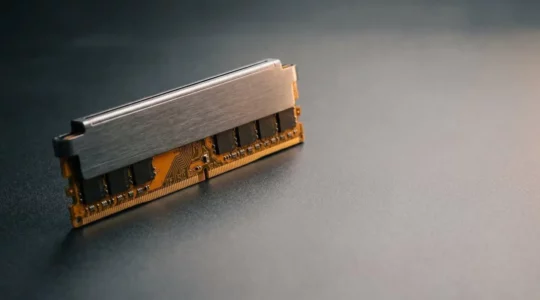
Why Does DDR5 Cost Twice as Much While Providing Minimal Real Gaming Improvement?
The belief that higher MHz is the ultimate goal in gaming RAM is a costly myth that benefits marketers more than gamers. True performance lies in a balance of frequency, tight timings (latency), and dual-channel bandwidth—a combination often overlooked. Overspending…
Read more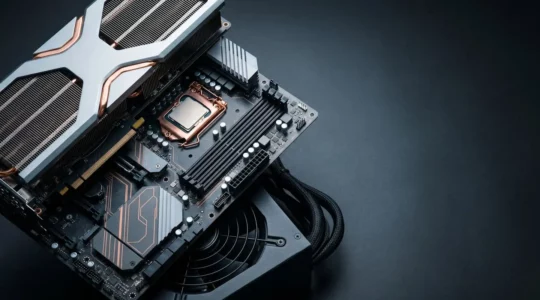
Why Does Replacing One Component Sometimes Require Changing Three Others?
Upgrading a single PC component often fails because of hidden ‘technical debt’ buried in your build’s foundations. A powerful new GPU is useless if your motherboard’s power delivery or an old CPU creates a critical data pipeline bottleneck. Small form…
Read more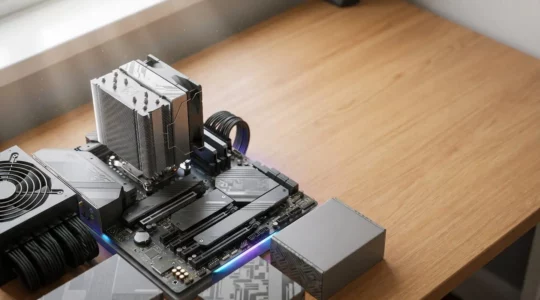
How to Build a PC That Stays Relevant for 7 Years With Minimal Upgrades
Building for longevity is not about buying the most expensive parts; it’s about investing in a stable ‘Platform Foundation’ (motherboard, PSU, case) that outlives multiple generations of faster, depreciating components like GPUs. The choice between AMD and Intel isn’t just…
Read more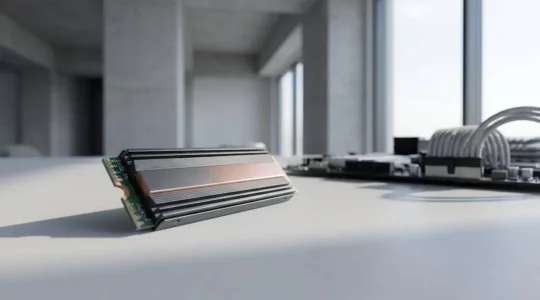
Why Does Your NVMe SSD Load Games in 3 Seconds When Your Old Drive Took 45?
Buying the fastest NVMe SSD doesn’t guarantee the fastest load times; your system’s bottlenecks are the real speed limit. Your CPU can only decompress game data at a fraction of your SSD’s speed, making ultra-fast drives overkill for many games….
Read more
Why Does Enabling GPU Rendering Cut Your Export Time from Hours to Minutes?
Your expensive GPU is likely underperforming not because it’s faulty, but because it’s being starved by hidden bottlenecks elsewhere in your system. Rendering performance is dictated by the weakest link, which is often CPU-bound codecs, overlooked VRAM thermal throttling, or…
Read more
Why Does Your Tablet Match Desktop Performance Sometimes But Not Always?
Your device’s performance is not defined by its fastest component, but by the efficiency of its entire system and its ability to manage heat. Peak speeds advertised on spec sheets often only apply to short “bursts,” not sustained workloads. Hidden…
Read more
Why Does Text Look Sharper on Your MacBook Than Your 4K External Monitor?
The frustrating blurriness on your 4K monitor isn’t a fault; it’s a direct result of a clash between Apple’s “Retina” high-pixel-density philosophy and the standard resolution of most external displays. macOS is optimised for two pixel densities: ~110 PPI (non-Retina)…
Read more
Why Your New Laptop Processor Runs Cooler Yet Outperforms Last Year’s Model?
Contrary to intuition, the most powerful new processors are not the hottest; they are the most efficient, thanks to a fundamental shift in design philosophy. Performance is no longer about raw clock speed (GHz) but about the “performance-per-watt” achieved through…
Read more