Replacing your laptop isn’t about buying gadgets; it’s about mastering your ‘latency budget’ to design an efficient mobile workflow.
- True mobile productivity comes from choosing low-latency peripherals, not just the most expensive ones.
- Cloud PCs like Shadow can outperform your phone’s local processor for heavy tasks with surprisingly negligible lag.
Recommendation: Audit your core tasks *before* buying any gear to build a resilient, minimalist setup that genuinely works for you.
The promise of the digital nomad lifestyle for many UK remote workers often clashes with the physical reality: a backpack weighed down by a 1.5kg laptop and its bulky power brick. The dream is freedom; the reality is a compromise between portability and productivity. Many have tried to lighten the load, reaching for tablets or settling for the cramped interface of a smartphone, only to find their workflow crippled by limitations they can’t quite pinpoint. The common advice—”just get a good portable monitor and a Bluetooth keyboard”—barely scratches the surface of the problem.
This approach treats the symptom, not the cause. The issue isn’t a lack of accessories, but a lack of intentional workflow design. A truly effective laptop replacement isn’t assembled from a shopping list; it’s engineered. The real key lies in understanding and managing a hidden cost: the ‘latency budget’. Every millisecond of delay, from your fingertip hitting a key to the result appearing on screen, adds up, creating a friction that drains focus and efficiency. This is especially true when juggling Bluetooth connections, cloud processing, and multiple devices.
But what if you could design a system that consciously accounts for these trade-offs? This guide moves beyond generic recommendations. We will deconstruct the mobile workstation into its core components: the desktop interface that transforms your phone, the peripherals that define your interaction, the crucial decision between local and cloud processing, and the minimalist accessory kit that supports it all. The goal is to build not just a lighter travel bag, but a faster, more resilient, and fundamentally more efficient way to work from anywhere in the UK and beyond.
Summary: The Ultimate Guide to Building a Phone-Based Mobile Workstation
- Why Samsung DeX Works Better Than Motorola Ready For for Office Tasks?
- How to Connect Bluetooth Peripherals That Feel Like a Desktop Setup?
- Shadow PC or Phone Processing: Which Delivers Better Mobile Productivity?
- The Bluetooth Latency Trap That Ruins Typing Speed on Mobile Setups
- Which Accessories to Pack for Productive Work from Hotels, Cafes, and Trains?
- Which Accessories Transform a Basic Tablet into a Full Workstation?
- iCloud, OneDrive, or Google Drive: Which Syncs Best Across Apple and Windows?
- Can Your Tablet Actually Replace Your Laptop for Serious UK Work?
Why Samsung DeX Works Better Than Motorola Ready For for Office Tasks?
The foundation of any phone-based workstation is the software layer that transforms a mobile operating system into a desktop environment. While several manufacturers have attempted this, Samsung DeX and Motorola’s Ready For are the main contenders. For serious office productivity, however, the choice is clear. Ready For is a capable system for media consumption and simple tasks, offering a clean launcher for apps. Yet, it operates more like an enhanced screen mirror than a true desktop replacement. Its ability to manage multiple, overlapping, and freely resizable windows is limited, which is a critical failure for any professional juggling documents, spreadsheets, and communication apps.
Samsung DeX, by contrast, has been refined over several generations into a mature and robust desktop environment. Its primary advantage is its fully developed window management system, which closely mimics the experience of Windows or macOS. You can have multiple applications open, resize them with precision, and snap them to the sides of the screen. This capability is not a gimmick; it’s the core of efficient multitasking. DeX allows for a seamless flow between tasks—researching in a browser while writing in a document, with a chat window open on the side—that Ready For struggles to replicate.
Furthermore, DeX benefits from a wider ecosystem of app optimizations. Samsung has worked with developers to ensure that key productivity apps like Microsoft Office and Adobe Lightroom function correctly in a desktop mode, with support for keyboard shortcuts and mouse input that feels native. As one analyst notes, DeX has crossed a critical threshold from novelty to utility. This focus on the granular details of the user experience is what elevates it from a feature to a genuine productivity tool.
DeX isn’t just a gimmick—it’s a functional productivity layer that turns high-end Android phones into legitimate computing devices.
– David Kim, Mobile Tech Analyst at GadgetInsight
How to Connect Bluetooth Peripherals That Feel Like a Desktop Setup?
A great desktop environment is useless without peripherals that provide a fluid, responsive connection. The goal is to replicate the crisp, immediate feel of a wired desktop keyboard and mouse, but without the wires. This isn’t just about ergonomics; it’s about minimizing the cognitive load caused by input lag. Modern Bluetooth technology has made this more achievable than ever, provided you select your components with intention. The key is to look for devices that prioritize low-latency connections and multi-device support.
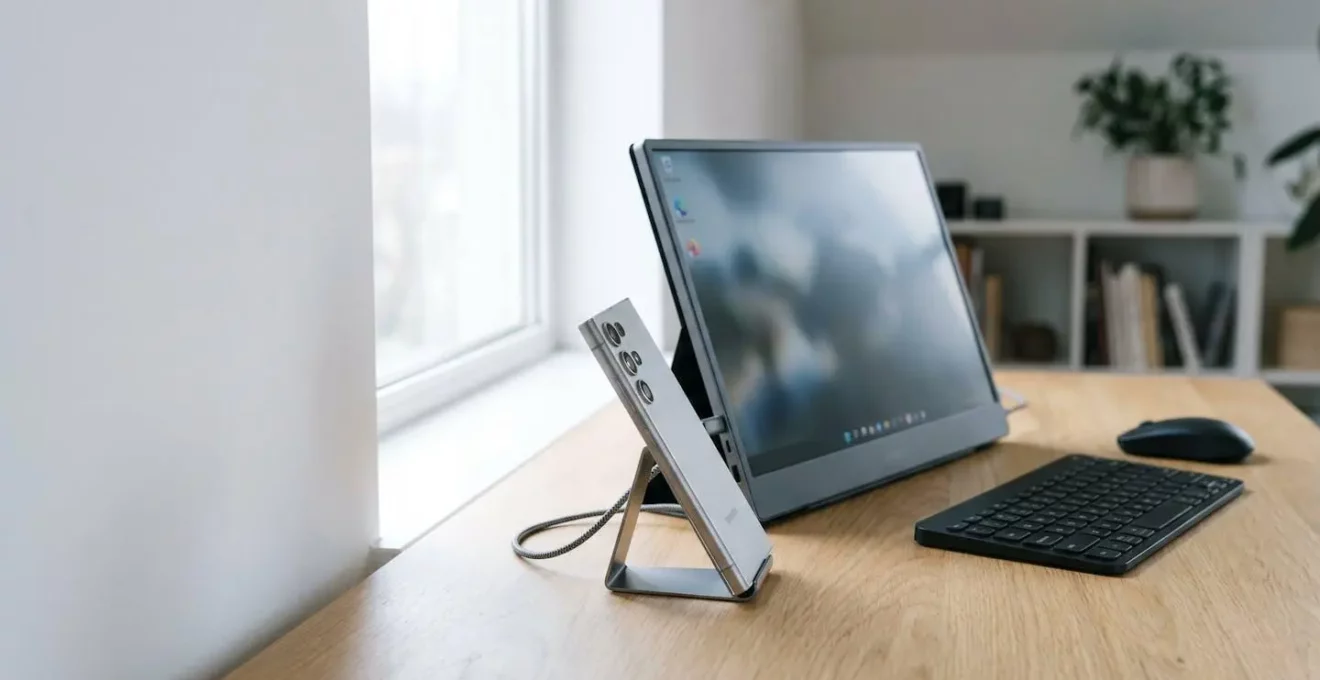
As the setup above illustrates, a minimalist aesthetic does not require a sacrifice in functionality. Premium compact keyboards and ergonomic mice are designed for the mobile professional. Look for keyboards that explicitly mention Bluetooth 5.0 or higher, as this standard offers significant improvements in latency and connection stability. The best wireless keyboards deliver near-imperceptible delays, with performance testing showing a latency of 7-15 milliseconds, well below the threshold of human perception for typing. This ensures a typing experience that feels instantaneous and accurate.
Beyond latency, the most crucial feature for a mobile workstation is multi-device switching. A keyboard and mouse that can pair with three devices (e.g., your phone, a tablet, and a personal laptop) and switch between them with a single button press are essential. This “frictionless transition” capability allows you to build a cohesive workspace around your phone, but instantly pivot to another device without re-pairing or plugging in cables. This single feature transforms a collection of separate gadgets into an integrated, efficient system, which is the cornerstone of a successful laptop replacement.
Shadow PC or Phone Processing: Which Delivers Better Mobile Productivity?
Once you have a desktop interface and responsive peripherals, the next critical decision in your workflow design is processing power. Do you rely on the phone’s local processor, or do you outsource the heavy lifting to a cloud PC? For basic tasks like email and web browsing, a modern flagship phone is more than capable. However, for demanding professional work—video editing, large dataset analysis in Excel, or running specialized Windows-only software—the phone’s processor will quickly become a bottleneck.
This is where a cloud PC service like Shadow PC becomes a game-changer for a mobile setup. Shadow streams a full Windows 11 desktop from a high-performance server directly to your phone. Your phone and portable monitor act as a simple terminal, while the actual computation happens in a data centre. For UK users, this is a particularly viable option. The primary concern with cloud computing is latency—the delay between your input and the response from the server. However, with data centres located nearby, this delay can be remarkably low. Real-world tests show that for users in the UK, the connection is incredibly responsive, with an average latency of just 25ms to the Paris data centre.
This small amount of latency is a tiny price to pay for access to a powerful, dedicated graphics card and a full desktop OS. In fact, the performance can feel almost native, blurring the lines between local and cloud computing.
Case Study: UK Broadband Latency Test
To understand the practical impact of latency, a comprehensive test was conducted using a typical UK broadband connection of 30 Mbps. The test compared the latency of Shadow PC against a locally run Xbox One. The results were surprising: Shadow PC measured 166 milliseconds of end-to-end latency, while the local Xbox One measured 149 milliseconds. This means the ‘cost’ of using the cloud PC was a mere 17-millisecond difference. For office productivity tasks like typing in Word or navigating complex spreadsheets, this tiny delay is virtually unnoticeable, proving that cloud PCs are a highly effective solution for boosting a mobile workstation’s power.
Choosing Shadow PC is a strategic decision. It’s a “task-specific kernel” you deploy when your workflow demands more power than your phone can provide. It allows a minimalist travel setup to punch far above its weight, running any software a high-end desktop could, all from a device that fits in your pocket.
The Bluetooth Latency Trap That Ruins Typing Speed on Mobile Setups
For the efficiency-obsessed remote worker, the greatest enemy is friction. In a mobile workstation, the most insidious form of friction is input lag. You may have the fastest phone and the best portable monitor, but if your keyboard and mouse feel sluggish, your entire workflow is compromised. This is the Bluetooth latency trap: a subtle but constant delay that drains mental energy and sabotages typing speed. Understanding this trap is the first step to avoiding it and building a truly responsive setup.
The core of the issue lies in the technology itself. Not all wireless connections are created equal. Many cheaper or older Bluetooth peripherals introduce significant delay. While you may not consciously register a 40-millisecond lag on a single keystroke, your brain does. Over thousands of keystrokes in a work session, this cumulative delay creates a frustrating disconnect between thought and action. It’s the reason some keyboards feel “mushy” or “unresponsive,” even if the physical keys are excellent.
The solution is to be ruthless in your selection of peripherals, treating latency as a non-negotiable specification. You must consciously manage your “latency budget”. This means seeking out keyboards and mice that use either the latest Bluetooth standards or, for ultimate performance, a dedicated 2.4GHz wireless connection via a small USB dongle. The difference is stark: performance testing shows typical Bluetooth 5.0+ keyboards have a latency of 20-40ms, whereas 2.4GHz connections can drop to an incredible 1-5ms. While using a dongle adds a tiny piece of hardware to your kit, the gain in responsiveness can be transformative for anyone whose work involves a high volume of typing.
When you use a cloud PC like Shadow, you are already “spending” some of your latency budget on the internet connection. Therefore, it becomes even more critical to minimize the latency from your local peripherals. Combining a high-latency Bluetooth keyboard with a cloud PC is a recipe for a frustrating, laggy experience. By choosing a low-latency keyboard, you preserve your budget for where it’s needed, ensuring a snappy, desktop-class feel no matter where you work.
Which Accessories to Pack for Productive Work from Hotels, Cafes, and Trains?
A truly mobile workstation is defined not by the gear you have, but by the gear you can leave behind. The goal is minimalism without compromise. This means every single item in your tech pouch must be multi-functional, reliable, and lightweight. Building the perfect accessory kit is an exercise in intentionality, where each component is chosen to solve a specific problem encountered by the remote worker in unpredictable environments like hotels, cafes, and trains.
The ideal kit revolves around a central nervous system of power and connectivity. A single, high-wattage Gallium Nitride (GaN) charger with multiple USB-C ports is non-negotiable. It should support Power Delivery (PD) to simultaneously fast-charge your phone and power your portable monitor. This eliminates the need for multiple bulky power bricks. Paired with this should be a fully-featured USB-C cable rated for both high-speed data and video output (DisplayPort Alt Mode). A cheap charging cable will not work for connecting your monitor. The final piece of the power puzzle is a compact power bank, also with USB-C PD, to keep your setup running when a wall outlet isn’t available.
With power and display handled, the focus shifts to workflow ergonomics and security. A lightweight, collapsible stand for your phone or monitor is essential for avoiding neck strain by raising the screen to eye level. For any UK professional handling sensitive client information, a privacy screen filter for the portable monitor is a crucial tool for GDPR compliance when working in public spaces. Before you invest in any of this hardware, however, the most important step is to audit your own needs.
Your 5-Step Mobile Workflow Audit
- Task Deconstruction: List your top 5 most frequent work tasks (e.g., editing a 50-page Word doc, joining a Teams call with screen share, manipulating a 10,000-row Excel sheet). Be specific.
- App & File Audit: For each task, inventory the exact apps and file types you use. Check for native Android app availability and performance versus needing a cloud PC.
- Peripheral Dependency Check: Identify which tasks are impossible without a physical keyboard, mouse, or large screen. Rate each task’s sensitivity to input lag (e.g., fast typing vs. clicking through a presentation).
- Connectivity Failure-Point Analysis: What happens if the café Wi-Fi is 2Mbps? Which of your top 5 tasks fail? This determines your need for offline capability versus pure cloud reliance.
- Ergonomic Baseline Measurement: Measure your current desk setup’s monitor height and keyboard position. This becomes the non-negotiable ergonomic target for your portable setup to avoid injury.
Which Accessories Transform a Basic Tablet into a Full Workstation?
While a phone-and-monitor setup offers the ultimate in minimalist portability, for some workflows, a tablet can provide a more integrated solution. However, a tablet out of the box is primarily a consumption device. Transforming it into a serious work machine requires a different, albeit related, set of accessories. The challenge remains the same: to bridge the gap between mobile convenience and desktop-level productivity. This is particularly true given that workplace technology adoption research shows 68% of employees still rely on a traditional desktop or laptop for their main work tasks.
To overcome this reliance, a tablet workstation must excel at connectivity and input. The single most important accessory is a high-quality USB-C hub. This is the tablet’s gateway to the professional world. Look for a hub that includes, at a minimum: an Ethernet port for stable, reliable internet during video calls (bypassing flaky hotel Wi-Fi), an HDMI port capable of 4K@60Hz output for connecting to a proper external monitor, and Power Delivery passthrough to charge the tablet while the hub is in use. This one device turns the tablet from a closed system into an open, extensible platform.
Input methods are the next critical upgrade. While official keyboard cases like Apple’s Magic Keyboard are elegant, they often compromise on typing feel. Consider a separate, high-quality detachable Bluetooth keyboard that offers superior tactile feedback for long-form writing. For creative or annotation-heavy work, a precision stylus (like the Apple Pencil or Samsung’s S-Pen) is indispensable. Finally, to overcome the tablet’s limited internal storage, a high-speed external SSD connected via the USB-C hub is essential for managing large files and projects without relying solely on the cloud. These accessories, chosen with purpose, can elevate a simple tablet into a formidable and versatile workstation.
Key Takeaways
- Samsung DeX provides a superior desktop-like experience for true multitasking over competitors.
- Your total input lag is a “latency budget” – spend it wisely on either Bluetooth or Cloud services, but not both.
- A minimalist mobile setup is born from a workflow audit, not an accessory shopping spree.
iCloud, OneDrive, or Google Drive: Which Syncs Best Across Apple and Windows?
The most powerful hardware in the world is useless if your files are trapped on another device. In any multi-device workflow—whether it’s a phone and monitor, a tablet, or a traditional laptop—the silent, invisible backbone that holds everything together is the cloud synchronization service. This is the single most critical component of a modern mobile-first strategy. The physical device you are using at any given moment becomes secondary if you have instant, reliable access to all your data. The goal is to make the device itself a disposable commodity and the data layer permanent and ubiquitous.
The choice of cloud service depends heavily on the ecosystem you operate in. For those exclusively within the Apple ecosystem, iCloud Drive offers the most seamless and integrated experience. Its background synchronization of desktop and documents folders is nearly flawless. However, for the majority of UK professionals who must navigate a mixed environment of a personal iPhone, a Windows work laptop, and an Android-based mobile workstation, iCloud’s performance on Windows is notoriously subpar. It’s often slow and lacks the deep integration of its competitors.
For true cross-platform excellence, the contest is between Google Drive and Microsoft OneDrive. Google Drive is fast and its web interface is excellent, making it a strong contender. However, for professionals, OneDrive has a distinct advantage. Its deep integration into both the Windows file system and the Microsoft 365 suite (Word, Excel, PowerPoint) is unmatched. The “Files On-Demand” feature, which shows all your cloud files in Explorer without taking up local disk space, is a masterclass in usability. It provides the perfect balance of accessibility and local resource management. For any workflow that involves Microsoft Office documents, OneDrive’s real-time co-authoring and version history make it the most robust and reliable choice for keeping a cross-platform work life in perfect sync.
Can Your Tablet Actually Replace Your Laptop for Serious UK Work?
We’ve deconstructed the mobile workstation, explored the power of cloud PCs, and optimized our accessory kits. This brings us to the ultimate question for any UK professional looking to lighten their load: can a phone or tablet setup truly replace a dedicated laptop for serious, demanding work? The data presents a fascinating paradox. On one hand, the world has undeniably gone mobile. Recent analytics confirm that 58.7% of global website traffic comes from mobile devices in 2024, proving that for a majority of tasks, we reach for the device in our pocket first.
This mobile-first instinct, however, has not yet fully translated to the professional sphere. The same research that highlights mobile’s dominance also offers a crucial dose of reality. The laptop, and its more powerful desktop sibling, remains deeply entrenched in the workplace. It is the tool of choice for tasks that require sustained focus, complex software, and high-performance computing.
Desktop remains essential for professional, complex, and high-performance tasks.
– Go-Globe Digital Research Team, Mobile vs Desktop Usage Trends Analysis
So, where does that leave the aspiring mobile minimalist? The answer is that “replacing the laptop” is the wrong goal. The phrase itself implies a one-to-one substitution, a search for a single device that does everything. This is a flawed premise. The new paradigm is not about replacement, but about intelligent system design. It’s about building a personal, modular ecosystem of devices and services—a powerful phone running DeX, a low-latency keyboard, a cloud PC subscription for heavy lifting, and a seamless cloud sync service as the glue—that collectively outperforms a monolithic laptop.
A phone and monitor setup can be 90% of a laptop for 30% of the weight and volume, but you must be prepared for that 10% delta. A tablet can offer a more integrated experience but may have different software limitations. The truly productive remote worker is a workflow designer who understands these trade-offs and chooses the right tool for the job at hand. The laptop isn’t dead, but its monopoly on “serious work” is over.
The first step in this new approach is not to buy new hardware, but to perform a rigorous audit of your own daily tasks. Evaluate your needs honestly and build the minimalist, resilient system that serves you, not the other way around.