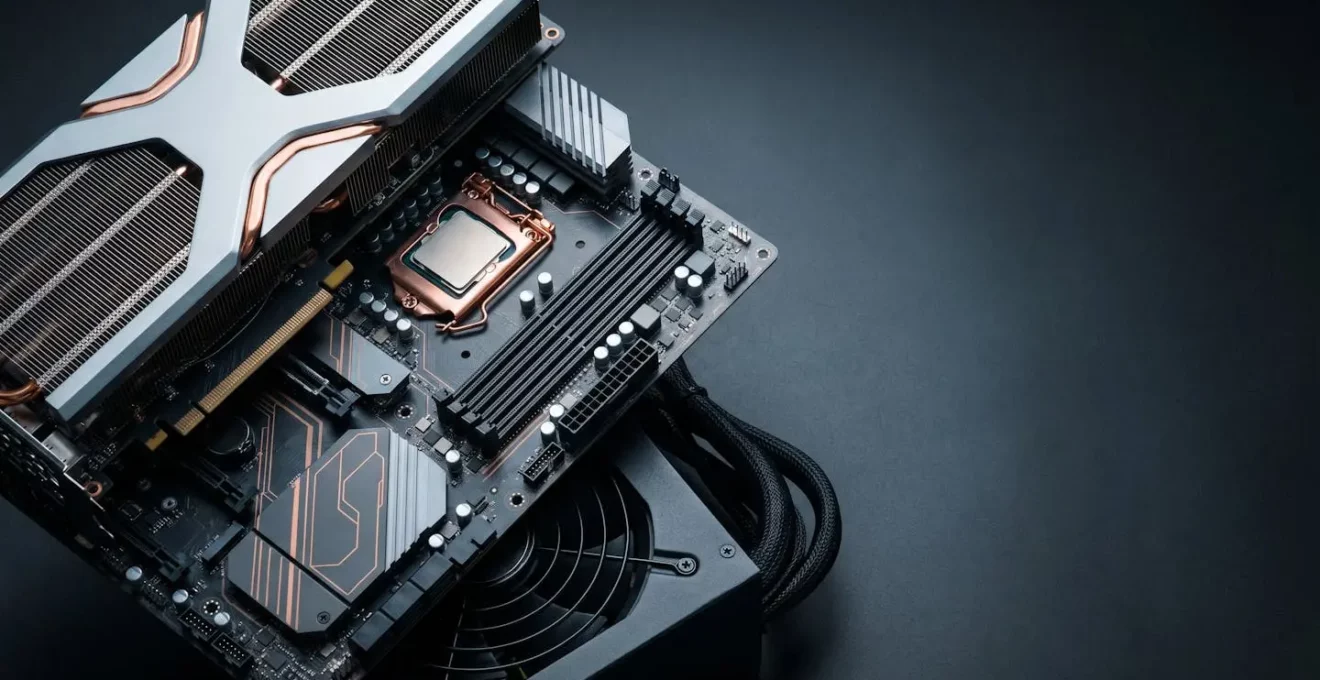
Upgrading a single PC component often fails because of hidden ‘technical debt’ buried in your build’s foundations.
- A powerful new GPU is useless if your motherboard’s power delivery or an old CPU creates a critical data pipeline bottleneck.
- Small form factor cases and pre-built OEM systems use proprietary parts and create thermal constraints that severely limit future upgrade pathways.
Recommendation: To build a system that ages gracefully, plan your component choices around three strategic pillars: a high-quality motherboard, a high-headroom power supply, and a spacious, well-ventilated case.
You’ve saved up, bought a shiny new graphics card, and are ready to enjoy a massive performance boost. But after installing it, you discover the problem isn’t just that your old processor can’t keep up; the new card physically doesn’t fit, or the power supply lacks the right connectors. Suddenly, a simple one-part upgrade has cascaded into a frustrating and expensive three-part replacement. This is a classic scenario for many UK PC builders, where the excitement of an upgrade quickly turns into a battle against unforeseen component interdependencies.
The common advice is to “check for bottlenecks” or “ensure compatibility,” but this reactive approach misses the core issue. It treats PC building as a series of isolated choices rather than a long-term strategic plan. The real problem isn’t just mismatched performance; it’s the accumulation of what software developers call “technical debt.” Every component choice, from the motherboard to the case, can either open up future upgrade pathways or lock you into a dead-end system that requires a complete overhaul every few years.
But what if the key wasn’t just checking compatibility for today, but strategically planning for the upgrades of tomorrow? This guide reframes the upgrade process. We will move beyond simple bottleneck calculators and instead map the hidden dependencies that truly dictate your PC’s lifespan. We’ll analyse how foundational choices in your motherboard, power supply, and case create either a flexible platform for the next seven years or a proprietary trap that costs you more in the long run.
By understanding these deep-seated connections, you can build a system that evolves with your needs through minimal, targeted upgrades, saving you both money and frustration. This article breaks down the critical decision points that determine your PC’s future-readiness, providing the framework to make smarter, more sustainable choices from the very beginning.
Summary: A Strategic Guide to PC Component Interdependencies
- Why Does Your New GPU Make Your Old CPU the Weakest Link?
- How to Choose a Motherboard That Supports 2 GPU Generations of Upgrades?
- Full ATX or Mini-ITX: Which Case Size Limits Your Future Options More?
- The OEM PC Trap That Makes Standard Components Incompatible
- How to Track Your PC Specs So You Know Exactly What Upgrades Fit?
- Which Spec to Prioritise When One Component Will Bottleneck Within 2 Years?
- The 500W PSU Mistake That Blocks Your Next Graphics Card Upgrade
- How to Build a PC That Stays Relevant for 7 Years with Minimal Upgrades?
Why Does Your New GPU Make Your Old CPU the Weakest Link?
The most common upgrade frustration is the “bottleneck,” where a new, powerful graphics card (GPU) is held back by an older, slower central processing unit (CPU). It’s often seen as a simple speed mismatch, but the reality is a fundamental breakdown in your system’s data pipeline. Think of your CPU as the factory’s logistics manager, preparing and sending job packages to the GPU, which is the high-powered assembly line. If the manager is too slow, the assembly line sits idle, no matter how fast it is. This is exactly what happens in your PC; the CPU fails to feed the GPU data quickly enough, leaving your expensive new hardware starved and underutilised.
This isn’t just about lower frame rates in games. In complex tasks, the impact is even more severe. For example, in AI-driven workloads, a slow CPU can be responsible for between 50% and a staggering 90.6% of the total processing latency, according to a Georgia Tech study. This means the vast majority of the time, your system is waiting on the CPU, not the GPU. The investment in a top-tier GPU is effectively nullified because the foundational processing unit can’t manage the data flow.
As the illustration above visualises, a narrow data pathway from the CPU renders the GPU’s wider processing capability irrelevant. A real-world example is pairing a high-end NVIDIA RTX 3080 with an older Intel Core i5-9400F. While the GPU is a powerhouse, the i5-9400F struggles to handle the complex physics and AI calculations in modern games, creating a significant bottleneck. Upgrading the CPU to a more capable model, like a Core i9-10900K, doesn’t just increase CPU speed—it unlocks the GPU’s full potential, allowing it to finally run at the performance level you paid for.
This highlights the first rule of strategic upgrading: components do not exist in a vacuum. A new GPU purchase must always be weighed against the data-processing capability of your current CPU. Ignoring this dependency is the fastest way to waste money on performance you can’t access.
How to Choose a Motherboard That Supports 2 GPU Generations of Upgrades?
If the CPU is the logistics manager, the motherboard is the entire factory floor—its design dictates everything. A cheap motherboard is the single largest source of future “technical debt” in a PC build. While most users check for the correct CPU socket and chipset, the true future-readiness of a motherboard lies in a component often overlooked: the Voltage Regulator Module (VRM). The VRM is the power-delivery system that feeds clean, stable voltage to your CPU. A weak VRM will struggle to power not only today’s high-end CPUs but will completely fail to support more demanding next-generation processors, forcing you into a full platform replacement.
A high-quality VRM, built with robust components, can handle higher power loads without overheating. This is not a minor detail. Comprehensive testing reveals a dramatic difference, with VRM temperatures ranging from a cool 53°C on premium boards to a dangerous 130°C on budget boards under the same 225W load. An overheating VRM leads to performance throttling and can shorten your CPU’s lifespan, effectively creating a performance wall for future upgrades. Choosing a motherboard with a robust VRM and substantial heatsinks is an investment in your system’s upgrade pathway.
Beyond the VRM, look for features that enable longevity. A key one is BIOS Flashback, which allows you to update the motherboard’s firmware without a compatible CPU installed. This is crucial for installing a next-generation CPU on an older-generation board. To assess a motherboard’s long-term potential, consider these points:
- VRM Phase Count and Quality: Look for motherboards with at least a 10+2 phase design for mainstream CPUs. Research the specific components used; quality brands like Infineon are a good sign.
- Effective VRM Cooling: Ensure the VRMs are covered by large, functional metal heatsinks, not just plastic shrouds. Heat pipes indicate a superior cooling solution.
- Manufacturer Support History: Check how long the manufacturer has provided BIOS updates for previous chipsets. A strong track record is a good indicator of future support.
- PCIe Generation: A motherboard with the latest PCIe generation (e.g., PCIe 5.0) ensures maximum bandwidth for at least the next two generations of GPUs, even if current cards don’t fully saturate it.
A motherboard is not a component you should save money on. It is the bedrock of your system, and a quality choice here pays dividends by allowing for multiple, seamless CPU and GPU upgrades down the line without requiring a complete system teardown.
Full ATX or Mini-ITX: Which Case Size Limits Your Future Options More?
Your choice of PC case is more than an aesthetic decision; it’s a commitment to a specific component ecosystem. While the appeal of a compact, desk-friendly Mini-ITX or Small Form Factor (SFF) build is strong, it severely mortgages your future upgrade flexibility. A larger Mid-Tower ATX case, by contrast, provides the physical space and thermal headroom needed to accommodate generations of evolving hardware. The limitations of an SFF build create significant “technical debt” that you’ll pay for with higher costs and reduced choice later.
The most immediate constraint is physical size. High-performance GPUs are growing larger with each generation, often occupying three or even four expansion slots. Many SFF cases simply cannot fit these cards. Similarly, powerful CPUs require large air coolers or All-in-One (AIO) liquid coolers to manage heat, but SFF cases have strict height clearances that limit you to less effective, low-profile coolers. As the Tom’s Hardware Editorial Team notes, “Shoving high-end parts into a compact case without ample ventilation and fans will lead to throttling at best, and perhaps a shorter lifespan for your parts.” This accumulated heat, or thermal debt, restricts your ability to upgrade to more powerful, hotter components in the future.
Shoving high-end parts into a compact case without ample ventilation and fans will lead to throttling at best, and perhaps a shorter lifespan for your parts.
– Tom’s Hardware Editorial Team, Best Mini-ITX Cases 2026 Review
Beyond physical fit, SFF builds lock you into a niche and more expensive component market. Power supplies must be the smaller SFX or SFX-L format, which offer less variety and are typically more expensive per watt than standard ATX PSUs. The table below, based on an analysis of the component ecosystem, highlights the trade-offs:
| Factor | Mini-ITX SFF | Mid-Tower ATX |
|---|---|---|
| Power Supply Options | SFX/SFX-L (limited, more expensive) | ATX (standard, widely available, budget-friendly) |
| CPU Cooler Height Limit | Typically 70-79mm (severely restricts high-TDP CPUs) | 165mm+ (supports tower coolers, better thermal headroom) |
| GPU Length Support | 280-320mm (depends on case, often 2-3 slot max) | 350-380mm+ (accommodates largest 3-4 slot cards) |
| Future Thermal Headroom | Limited; cramped airflow builds ‘thermal debt’ | Excellent; ample space for additional cooling |
| Component Variety | Restricted to SFF-specific parts | Full access to all standard components |
| Upgrade Complexity | High (tight builds, potential case replacement) | Low (straightforward swaps) |
Choosing a Mid-Tower ATX case is a strategic decision for longevity. It provides maximum flexibility, access to a wider and more affordable range of standard components, and the crucial thermal headroom to ensure your future upgrades can run at their full potential without throttling.
The OEM PC Trap That Makes Standard Components Incompatible
Pre-built PCs from major manufacturers like Dell, HP, or Lenovo can seem like a great value, but they often contain a hidden trap: proprietary components. These systems are frequently designed with custom-shaped motherboards, non-standard power supply connectors, and integrated front-panel I/O that make them nearly impossible to upgrade with standard, off-the-shelf parts. This is the OEM proprietary trap, a deliberate design choice that locks you into their ecosystem and forces you to buy a whole new machine instead of performing simple, cost-effective upgrades.
The problem lies in deviations from industry-standard form factors. For instance, instead of using a standard 24-pin ATX power connector, an OEM motherboard might use a proprietary 8-pin or 12-pin connector. This means you can’t replace the underpowered stock PSU with a more powerful one to support a new GPU. The motherboard itself may have a non-standard shape or mounting-hole pattern, making it impossible to transfer into a new, more spacious case with better airflow. These small, deliberate changes effectively turn your PC into a disposable appliance.
Recognising these traps before purchase is essential. You must become an inspector, looking for tell-tale signs of proprietary design. The image above shows a clear example: a standard, modular ATX connector on the left versus a non-standard, single-block proprietary connector on the right. The one on the right closes the door on future PSU upgrades. Before buying any pre-built PC, perform a thorough audit.
Your 5-Point Audit Plan: Spotting Proprietary Traps Before You Buy
- Power Connectors: Check the PSU and motherboard. Verify they use standard 24-pin ATX motherboard and 8-pin EPS CPU power connectors, not custom multi-pin blocks.
- Motherboard Form Factor: Identify the motherboard’s shape. Does it match standard ATX, Micro-ATX, or Mini-ITX dimensions and mounting holes, or is it a custom shape with odd cutouts?
- Front Panel I/O: Examine the front panel connectors (power button, USB). Do they use individual standard pin headers or a single, non-standard proprietary block?
- Expansion Slot Access: Ensure PCIe slots are physically accessible and not blocked by chassis elements. Confirm the case has standard, removable slot covers for adding new cards.
- Firmware Accessibility: Research the specific model online. Does the BIOS/firmware allow access to advanced settings like XMP for RAM overclocking, or is it locked down?
By running through this checklist, you can determine if a pre-built PC is an open platform or a dead-end system. Opting for systems built with standard components is the only way to ensure you retain control over your future upgrade pathway.
How to Track Your PC Specs So You Know Exactly What Upgrades Fit?
Managing your PC’s technical debt and planning future upgrades is impossible without a clear, accurate inventory of what’s inside your system. Relying on memory or digging for old purchase receipts is a recipe for disaster. The solution is to create and maintain a “PC Passport”—a single, definitive document that tracks every critical specification and dimension of your build. This isn’t just a list of parts; it’s a strategic blueprint for all future modifications.
Tools like PCPartPicker have revolutionised compatibility checking, but their true power lies in planning. A user planning an upgrade can input their existing components and immediately see potential conflicts. For example, a builder used the tool to discover that their desired high-end GPU was 25mm too long for their compact case. This early flag prevented a costly and frustrating purchasing mistake, allowing them to filter for powerful cards that did fit their 310mm length limit. This proactive validation is the core benefit of diligent spec tracking.
Your PC Passport should go beyond what software can detect. It needs to include physical measurements and specifications that are unique to your build. Taking 30 minutes to create this document when you first build or buy your PC will save you hours of guesswork and prevent expensive errors down the line. It turns every potential upgrade from a gamble into a calculated decision.
Here are the essential fields to include in your PC Passport, which you can maintain in a simple spreadsheet:
- Component Identification: For each part (CPU, GPU, RAM, etc.), record the manufacturer, model number, purchase date, and warranty details.
- Critical Physical Dimensions: Measure and log the maximum CPU cooler height (from motherboard surface to case side panel) and the maximum GPU length and width your case can accommodate.
- Power Specifications: Note your PSU’s total wattage, its 80 Plus efficiency rating (e.g., Bronze, Gold), and the number of available PCIe power connectors (6-pin and 8-pin).
- Motherboard & RAM Specs: Document the CPU socket type (e.g., LGA1700, AM5), motherboard chipset, supported RAM type (e.g., DDR4, DDR5), and maximum RAM capacity.
- Digital Documentation: Store direct links to the online PDF manuals for your motherboard, case, and PSU for quick access to detailed diagrams and specifications during an upgrade.
This living document is your single source of truth. With it, you can confidently research and purchase new components, knowing exactly what will fit and function within your existing ecosystem.
Which Spec to Prioritise When One Component Will Bottleneck Within 2 Years?
When planning a build, it’s inevitable that one component will become the bottleneck sooner than others. The question is, which part should you over-invest in today to delay that obsolescence? The common impulse is to pour money into the most visible performance drivers: the CPU and GPU. However, the strategic choice is to prioritise the “silent foundations” of your system—the components that enable future upgrades rather than just delivering today’s performance. The two most critical specs to prioritise are your motherboard’s quality and your power supply’s headroom.
As we’ve established, a high-quality motherboard with robust VRMs and a modern chipset acts as a stable platform for at least one, if not two, future generations of CPUs. Opting for a top-tier motherboard today means that in three years, you can drop in a new CPU without needing to replace your motherboard, RAM, and potentially your operating system installation. This turns a major, expensive platform upgrade into a simple, cost-effective CPU swap. The longevity of your platform is the highest priority.
The second priority is the Power Supply Unit (PSU). A PSU should not be chosen to merely meet the needs of your current build. It should be selected to handle the power demands of the components you plan to upgrade to in two to four years. This means investing in a higher-wattage, high-efficiency (80+ Gold or better) unit from a reputable brand. A high-quality 850W-1000W PSU today will comfortably power successive generations of power-hungry GPUs, saving you from having to rewire your entire system for a future upgrade.
By prioritising investment in the motherboard and PSU, you are effectively paying down your future technical debt. While your initial CPU or GPU might become a bottleneck in two years, your foundational components will be ready and waiting to support their replacements. This approach transforms the upgrade cycle from a series of forced, cascading replacements into a predictable process of targeted, single-part enhancements.
The 500W PSU Mistake That Blocks Your Next Graphics Card Upgrade
One of the most common and costly mistakes a first-time builder makes is selecting a power supply based on the “estimated wattage” from a PC building website. A calculator might suggest a 500W or 550W PSU is sufficient for your current build, and technically, it is. But this approach is dangerously short-sighted and plants a ticking time bomb in your system. This “just enough” PSU will almost certainly block your very next significant graphics card upgrade, forcing a premature and difficult replacement.
The problem is that modern, high-performance GPUs are notoriously “spiky” in their power consumption. While a card might have an average power draw (TDP) of 250W, it can experience extremely brief, high-energy transient spikes that draw double or even triple that amount for a few milliseconds. A lower-quality or lower-wattage PSU cannot handle these sudden demands. When a spike occurs, the PSU’s over-current protection will trip, causing your entire system to shut down or restart, especially under heavy gaming or rendering loads.
This is why a new GPU, which on paper should work with your 500W PSU, causes constant crashes. The technical debt of your initial PSU choice has come due. Furthermore, PSU efficiency and capacity degrade over time. A 500W unit might only deliver 450W of stable power after a few years of use, further reducing its ability to handle a new, more demanding component. It’s not just about total wattage; it’s about the quality and headroom to absorb transient loads.
The strategic solution is to invest in a PSU with significant overhead from the start. For a modern gaming PC, an 850W, 80+ Gold-rated PSU from a reputable manufacturer should be considered the baseline. This provides enough headroom to absorb the transient spikes of current and next-generation GPUs, ensures stable power delivery as the unit ages, and gives you the confidence that your next GPU upgrade will be a simple plug-and-play operation, not a system-wide crisis requiring you to unplug and re-route every cable in your PC.
Key takeaways
- Component upgrades are not isolated; they are part of a system of deep interdependencies where a single weak link can nullify an expensive new part.
- Strategic PC building focuses on managing “technical debt” by investing in foundational components (motherboard, PSU, case) that enable future upgrades.
- A high-quality motherboard with robust VRMs and a high-headroom PSU are not costs—they are investments in your PC’s long-term upgrade pathway.
How to Build a PC That Stays Relevant for 7 Years with Minimal Upgrades?
Building a PC that remains relevant for the better part of a decade is not about buying the most expensive parts today. It’s about adopting a philosophy of strategic planning and technical debt management. A truly future-proof PC is a myth, but a “future-resistant” one is achievable. It requires shifting focus from short-term performance benchmarks to the long-term flexibility of the underlying platform. The goal is to create a system where major components can be swapped with minimal collateral replacement, turning the upgrade cycle into a predictable and manageable process.
This strategy rests on three pillars we’ve explored: the platform, the power, and the space. First, invest in a high-quality motherboard platform. This is your number one priority. A board with excellent VRMs, a forward-looking chipset, and a history of manufacturer support will allow you to upgrade your CPU at least once or twice without a full system teardown. Second, secure your system with a high-headroom power supply. An 850W+ Gold-rated PSU from a trusted brand will handle the power spikes of future GPUs and last through multiple upgrade cycles. It is the heart of your system, and its reliability is non-negotiable.
Finally, give your components room to breathe and grow with a spacious Mid-Tower ATX case. This provides the physical and thermal headroom to accommodate ever-larger GPUs and more effective cooling solutions, preventing thermal throttling from becoming your future bottleneck. These three foundational choices dictate the upgrade pathways available to you for the next seven years.
By consciously avoiding the proprietary traps of OEM systems and meticulously tracking your specifications in a PC Passport, you move from being a reactive consumer to a proactive system architect. You are no longer at the mercy of cascading failures; you are in control of your machine’s evolution. This approach transforms a PC from a disposable commodity into a sustainable, long-term investment.
Start today by auditing your current system or planning your next build not around a single headline-grabbing component, but around a resilient foundation that will serve you for years to come.