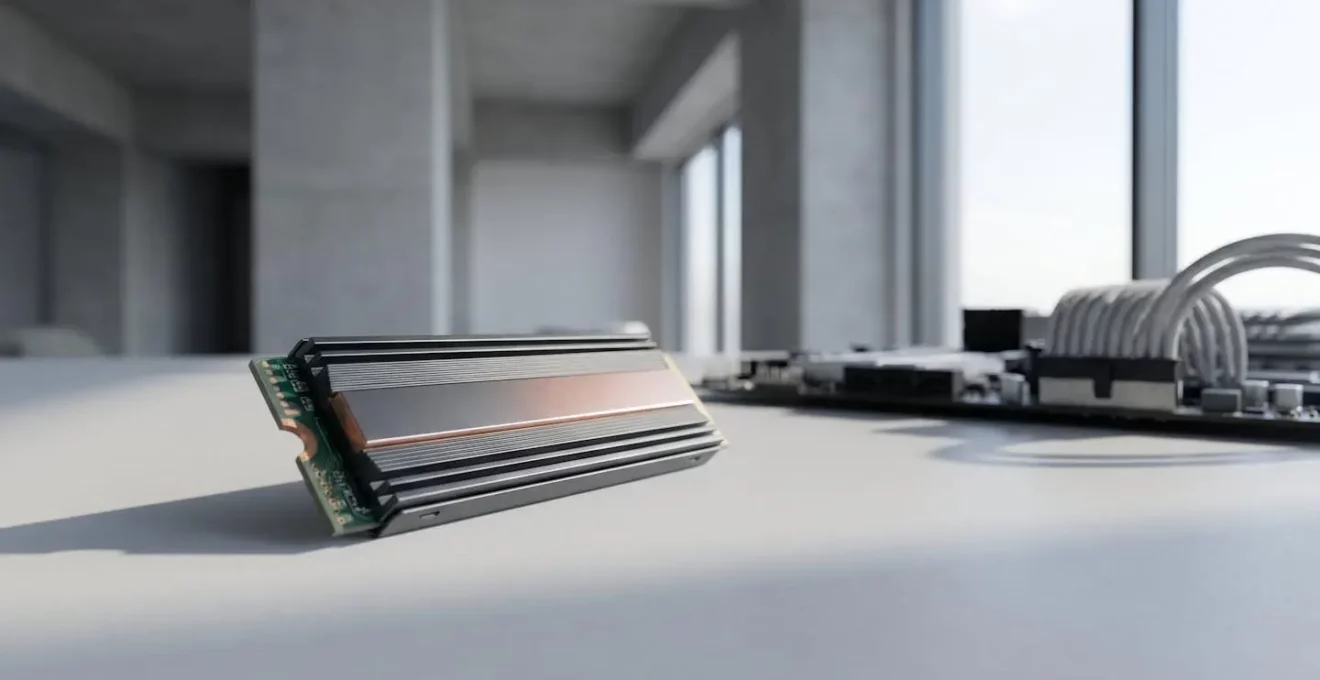
Buying the fastest NVMe SSD doesn’t guarantee the fastest load times; your system’s bottlenecks are the real speed limit.
- Your CPU can only decompress game data at a fraction of your SSD’s speed, making ultra-fast drives overkill for many games.
- An SSD over 90% full can slow down dramatically due to how it manages data, negating its speed advantage.
Recommendation: Prioritise a balanced system and keeping your drive below 85% capacity over chasing the highest theoretical SSD speed.
The first time you boot a game after upgrading from a clunky old hard disk drive (HDD) to a modern Non-Volatile Memory Express (NVMe) solid-state drive (SSD), the experience is pure magic. A loading screen that once gave you time to make a cup of tea now vanishes in three seconds. That 45-second wait is a distant memory, replaced by near-instant access to your digital worlds. This leap in performance represents one of the most significant quality-of-life improvements in PC hardware in the last decade.
But now, the market is a confusing landscape of specifications. You see terms like PCIe 3.0, 4.0, and even 5.0, with speeds climbing from 3,500 MB/s to a staggering 14,000 MB/s. The common wisdom seems to be “buy the fastest drive you can afford.” Yet, many gamers who upgrade from a “fast” PCIe 4.0 drive to a “ridiculously fast” one report that their game load times barely budge. This is where the marketing narrative breaks down.
The secret to true, noticeable performance isn’t just about the maximum theoretical speed printed on the box. It’s about understanding the complete data journey, a system-wide relay race where your SSD is just one runner. If the other runners are slow, it doesn’t matter how fast your SSD is. This article will expose the hidden bottlenecks—from your CPU’s processing power to the way your games are designed—that truly dictate your experience. We will move beyond the marketing hype to understand the ‘why’ behind storage performance, helping you make smarter, more effective upgrade decisions.
This guide deconstructs the complex relationship between storage speed and real-world gaming performance. We will explore the technical nuances that separate one drive from another and the system-level factors that can render a top-tier SSD’s speed irrelevant.
Summary: Unlocking the Real Speed of Your NVMe SSD
- Why Don’t All NVMe SSDs Perform Equally Despite Similar Speed Claims?
- How to Check Whether Your SSD Is Running at Full PCIe 4.0 Speed?
- PCIe 5.0 SSD or 4.0: Does Doubling Speed Actually Cut Load Times in Half?
- The 90% Full Threshold That Slows Your SSD to Hard Drive Speeds
- When to Prioritise Speed Versus Capacity in Your Next SSD Purchase?
- How to Check Whether Your Phone’s Storage Speed Has Degraded Over Time?
- Why Does Your PS5 SSD Enable Game Mechanics That Were Impossible Before?
- Why Does Your Tablet Match Desktop Performance Sometimes But Not Always?
Why Don’t All NVMe SSDs Perform Equally Despite Similar Speed Claims?
You’ve likely seen two NVMe drives with the same “7,000 MB/s” speed rating but a significant price difference. This isn’t just branding; it points to crucial underlying components that dictate performance beyond simple sequential reads. The most important of these is the presence, or absence, of a DRAM cache. An SSD controller is constantly juggling data—reading, writing, and managing the placement of data blocks on the NAND flash chips. A DRAM cache acts as a tiny, ultra-fast scratchpad for the controller, holding the map of where all your data is stored.
When a drive lacks a dedicated DRAM cache (often called a “DRAM-less” SSD), it has to store this map directly on the slower NAND flash or use a small portion of your computer’s main RAM (a feature called Host Memory Buffer). While HMB is a clever workaround, neither method is as fast as having a dedicated chip right next to the controller. The DRAM cache communicates much faster with the NVMe controller, similar to how computer RAM communicates with the CPU. This results in significantly lower latency and much better performance when dealing with thousands of small, random files—a common scenario in both operating systems and games.
Furthermore, the quality of the NAND flash (SLC, MLC, TLC, QLC) and the sophistication of the controller itself play massive roles. A premium controller can manage data more efficiently, reducing write amplification and maintaining high speeds even under heavy load. So, while two drives might hit the same peak speed in a benchmark, the one with a DRAM cache and a better controller will feel consistently faster and more responsive in day-to-day use and complex gaming scenarios.
How to Check Whether Your SSD Is Running at Full PCIe 4.0 Speed?
Unboxing your new PCIe 4.0 SSD and slotting it into your motherboard is just the first step. Unfortunately, it’s surprisingly easy to inadvertently run your drive at a fraction of its potential speed due to simple configuration oversights. A drive rated for 7,000 MB/s might be chugging along at 3,500 MB/s (PCIe 3.0 speeds) or even slower if it’s sharing bandwidth. Ensuring you’re getting every megabyte per second you paid for requires a quick system audit.
This process involves checking three key areas: the physical installation, your BIOS/UEFI settings, and finally, software verification and benchmarking. The physical slot you use is critical. On most consumer motherboards, only the top M.2 slot, closest to the CPU, offers a direct, dedicated set of PCIe lanes. Secondary slots may run through the chipset, forcing the SSD to share bandwidth with USB ports, SATA drives, and other peripherals, effectively creating a traffic jam for your data.
Once you’ve confirmed the physical placement, a dive into the BIOS/UEFI is necessary to ensure the firmware is configured to provide the maximum bandwidth to that slot. Finally, using free tools, you can confirm the connection link and benchmark the drive against its expected performance, ruling out any thermal throttling that could be secretly kneecapping your speeds. This verification is the only way to be certain that the foundation of your system’s performance is as solid as you expect it to be.
Your Action Plan: Three-Step SSD Performance Verification
- Physical Slot Verification: Check your motherboard manual to confirm which M.2 slots connect directly to the CPU versus the chipset. The top slots typically offer full, dedicated bandwidth while lower slots may share it with USB and SATA ports, reducing performance.
- BIOS/UEFI Pre-Flight Check: Ensure your firmware is updated. In the BIOS/UEFI settings, enable ‘Above 4G Decoding’ if present, and confirm that PCIe bifurcation settings are correct for your slot configuration to allocate the full x4 lanes to the drive.
- Benchmark Against Model Baseline: Use a tool like CrystalDiskInfo to verify a “PCIe 4.0 x4” link status. Then, run a benchmark with CrystalDiskMark and compare your sequential read/write results to published reviews of your specific drive model. Monitor temperatures with HWInfo64 during the test to detect any performance drops due to thermal throttling.
PCIe 5.0 or 4.0: Does Doubling Speed Actually Cut Load Times in Half?
The leap from PCIe 4.0’s typical 7,000 MB/s to PCIe 5.0’s 14,000 MB/s seems like a revolution. Logic suggests that if your drive is twice as fast, game levels should load in half the time. This is the marketing promise, but the physical reality of how a computer works introduces a critical system-level bottleneck: CPU data decompression. Game assets are stored on your SSD in a highly compressed format to save space. When you load a game, the SSD reads this compressed data at incredible speeds, but then it has to hand it off to the CPU to be uncompressed and made usable by the game engine.
This is where the relay race analogy becomes critical. Your PCIe 5.0 SSD can sprint and pass the baton (the compressed data) to the CPU in record time. But the CPU, as powerful as it is, can only decompress that data at a certain rate. As a recent technical analysis reveals, consumer-grade CPUs only decompress game assets at roughly 1-2 GB/s through conventional methods. Your 14,000 MB/s drive is effectively fire-hosing data at a CPU that can only drink through a straw. The SSD finishes its job almost instantly and then waits for the CPU to catch up. This is why you see diminishing returns for game loading as SSD speeds increase.
This image illustrates the core issue: a massive, high-speed flow of data (from the SSD) is being forced through a narrow channel (the CPU’s decompression limit), preventing the full potential of the storage from being realised. The bottleneck isn’t the storage anymore; it’s the processing.
Case Study: Real-World PCIe 4.0 vs 5.0 Gaming Load Time Comparison
Independent testing reveals the stark reality of this bottleneck. When loading a massive game level, upgrading from a legacy SATA SSD to a modern NVMe drive saves approximately 7 seconds—a huge, immediately noticeable improvement. However, in a test published by KingSpec, upgrading from a high-end PCIe 4.0 drive to a top-tier PCIe 5.0 drive saved only half a second, a difference that is barely perceptible. The bottleneck had completely shifted from the storage medium’s speed to the CPU’s ability to unpack the data being fed to it. The SSD was sending data faster than the CPU could possibly use it.
The 90% Full Threshold That Slows Your SSD to Hard Drive Speeds
One of the most insidious performance traps for SSD users is the “performance cliff” that occurs as the drive fills up. Unlike a hard drive, which just writes data to the next available physical space, an SSD cannot directly overwrite existing data. To write new data to a block that already contains old, deleted data, it must first read the entire block into cache, add the new data, erase the entire block on the drive, and then write the newly combined block back. This process is called a read-modify-write cycle, and it is significantly slower than a simple write operation.
When your SSD is mostly empty, it has plenty of fresh, empty blocks and can write new data at full speed without this overhead. Features like TRIM help by proactively telling the SSD which blocks are no longer in use, allowing the drive’s internal “garbage collection” process to clean them up during idle time. However, as the drive fills up, the number of free, ready-to-write blocks plummets. The controller is forced to perform those slow read-modify-write cycles on the fly, constantly scrambling to find space.
This is the performance cliff. Your drive, which once felt instantaneous, suddenly feels sluggish. Operations that were instant now have a noticeable delay. As real-world performance testing demonstrates, at 85-95% full capacity, SSDs experience noticeable slowdowns, with sequential read/write speeds dropping significantly. For a gamer, this might manifest as stuttering during gameplay as the drive struggles to stream new assets, or longer load times that creep back towards what you thought you’d left behind. A good rule of thumb is to always leave 15-20% of your SSD’s capacity free to ensure the controller has enough breathing room to work efficiently.
When to Prioritise Speed Versus Capacity in Your Next SSD Purchase?
Navigating the SSD market requires a clear understanding of your own use case. The temptation is to go for the drive with the highest speed, but as we’ve seen, that speed is often limited by other parts of your system. This is where a strategic choice between speed and capacity comes into play, ensuring you get the most value and performance for your specific needs.
For the vast majority of gamers, the law of diminishing returns hits hard and fast after a certain point. A solid PCIe 4.0 drive provides more than enough bandwidth to feed the CPU for game loading, and the additional speed of a top-tier PCIe 5.0 drive will go largely unused. In this scenario, prioritising capacity is the smarter move. A larger 2TB or 4TB drive allows you to keep more of your game library installed and, crucially, makes it easy to stay well below the 85% capacity threshold where performance begins to degrade. Having a 2TB drive with 500GB of free space is far better than a 1TB drive that’s constantly hovering at 95% full.
The equation changes for professionals and content creators. A video editor working with 8K raw footage or a 3D artist moving massive texture files can actually leverage the sustained write speeds of a high-end PCIe 4.0 or 5.0 drive. In these workflows, the time saved transferring and working with huge files can directly translate to productivity gains, justifying the premium cost. For these users, speed, particularly high sustained write speed and a large SLC cache, should be the priority, even if it means opting for a slightly smaller capacity to fit the budget.
| User Profile | Recommended Drive Type | Key Priority | Capacity Sweet Spot |
|---|---|---|---|
| Pure Gamer | 2TB PCIe 4.0 (7,000 MB/s) | Balance of speed and capacity | 2TB (stay under 1.6TB usage) |
| Video Editor / Content Creator | Top-tier PCIe 4.0 or 5.0 | High sustained write speeds and large SLC cache | 2-4TB for professional workflows |
| Budget Builder / Secondary PC | Large-capacity SATA SSD | Maximum storage per dollar | 2TB+ for game library storage |
Ultimately, for gamers, the sweet spot is clear. As industry analysis confirms, PCIe 4.0 drives offering around 7,000 MB/s provide all the performance needed, with benefits plateauing for most users. Investing beyond that point for gaming alone is often an inefficient use of your budget that would be better spent on a larger capacity drive or other system components like the GPU or CPU.
How to Check Whether Your Phone’s Storage Speed Has Degraded Over Time?
The same principles that govern SSD performance in your PC also apply, on a smaller scale, to the storage in your smartphone. Over a couple of years, you may notice your once-snappy phone feels sluggish, apps take longer to open, and the camera is slow to save photos. While software updates and “app bloat” play a part, the degradation of your phone’s flash storage is often a key culprit.
Just like a PC SSD, your phone’s storage performance degrades as it fills up. The internal controller has less free space to work with, leading to slower write speeds. To check for this, you can run a simple diagnostic. First, identify your phone’s storage type. High-end phones typically use UFS (Universal Flash Storage), which is like a miniature NVMe drive, while older or budget models may use eMMC (embedded MultiMediaCard), which is significantly slower. Reviews for your specific model will have baseline storage speed scores from when the phone was new.
You can then use a storage benchmark app (like Androbench on Android) to test your phone’s current random read/write speeds. For an accurate test, it’s best to simulate a “worst-case” scenario by filling your phone to about 90% capacity before running the benchmark. If your scores are drastically lower than the factory-fresh reviews, it’s a strong indicator that storage degradation, combined with accumulated app data and file fragmentation, is contributing to the slowdown. In many cases, a full backup followed by a factory reset can be an effective (if drastic) strategy to restore much of that lost performance by giving the storage controller a clean slate.
Why Does Your PS5 SSD Enable Game Mechanics That Were Impossible Before?
The PlayStation 5 is a fascinating case study in smart system design. On paper, its SSD’s raw speed of 5.5 GB/s is slower than many PCIe 4.0 drives available for PCs. Yet, it enables game experiences, like the instantaneous world-hopping in Ratchet & Clank: Rift Apart, that are architecturally impossible on most PCs. The secret lies in a holistic approach that bypasses a key bottleneck we’ve already discussed: CPU decompression.
Sony’s engineers understood that simply throwing a fast SSD into the console wouldn’t be enough; the CPU would still be a choke point. Their solution was to build a dedicated hardware decompression block right into the PS5’s chipset. This custom silicon is specifically designed to do one job: decompress game data from the SSD at blistering speeds. This frees up the main CPU cores to focus on other tasks like AI, physics, and game logic.
The result is a system with an “effective bandwidth” far greater than the SSD’s raw speed. The combination of the 5.5 GB/s SSD and the hardware decompressor allows the system to stream assets into memory just milliseconds before they are needed on screen. This is a paradigm shift from older consoles, which had to pre-load huge chunks of a level into RAM, leading to long loading screens or restrictive corridor-like level designs to hide background loading. As Sony’s PS5 architect Mark Cerny revealed, the PS5’s custom Kraken decompressor delivers performance equivalent to nine Zen 2 CPU cores dedicated solely to this task—a level of specialised power a typical PC cannot match for this specific job.
Case Study: Ratchet & Clank Rift Apart’s Architectural Achievement
The game Ratchet & Clank: Rift Apart is the ultimate demonstration of this architecture. The game’s core mechanic involves instantly teleporting between completely different, highly detailed worlds. This is not a trick; the console is genuinely loading and rendering a new environment in under a second. The PS5’s combination of raw SSD speed with Kraken hardware decompression, further enhanced by Oodle Texture technology, can achieve a peak I/O bandwidth of up to 17.38 GB/s. This synergy allows the system to stream the required assets for the next world just in time, a feat that would be architecturally impossible on hardware reliant on traditional CPU decompression, which would introduce stuttering or a loading pause.
Key Takeaways
- An SSD’s real-world performance is dictated by its controller and DRAM cache, not just its advertised sequential speed.
- Your CPU’s decompression speed is the primary bottleneck for game loading, not your SSD’s raw throughput.
- Keeping your SSD below 85% capacity is crucial to avoid a “performance cliff” and maintain high speeds.
Why Does Your Tablet Match Desktop Performance Sometimes But Not Always?
Modern high-end tablets, particularly models like an M-series iPad Pro, often feature processors with remarkable “burst” performance that can rival or even exceed that of many desktops in short, intensive tasks. When you open an app, browse a complex webpage, or perform a quick photo edit, the tablet’s System-on-a-Chip (SoC) can sprint at maximum speed, providing a fluid, instantaneous experience that feels every bit as powerful as a dedicated PC.
However, this power comes with a significant caveat: thermal management. A desktop PC has a spacious case, large heatsinks, and multiple fans dedicated to dissipating heat. A tablet is a thin, sealed, fanless slab of glass and aluminium. During a sustained heavy task, like exporting a 4K video or playing a graphically demanding game for 30 minutes, the tablet’s SoC generates a tremendous amount of heat. With no active cooling, this heat has nowhere to go.
To prevent damage, the device will intentionally “throttle” its performance. The system automatically reduces the processor’s clock speed to lower heat output, which in turn reduces performance. This is the moment the desktop PC pulls far, far ahead. While the tablet has slowed to a crawl to manage its temperature, the desktop’s robust cooling system allows it to maintain its peak performance indefinitely. This fundamental difference in thermal design is why a tablet can feel like a desktop for a 30-second sprint, but can never compete in a 30-minute marathon.
A high-end tablet (like an M-series iPad Pro) has a processor that can ‘sprint’ at desktop-level speeds for short bursts. However, its thin, fanless chassis cannot dissipate heat like a desktop. During a sustained heavy task, it will ‘throttle’ its performance to manage heat, at which point the desktop PC pulls far ahead.
– Technical Performance Analysis, Understanding Thermal Throttling in Mobile Devices
To maximise your gaming performance, the next logical step is to audit your current system using these principles and identify your true bottleneck before planning your next upgrade.