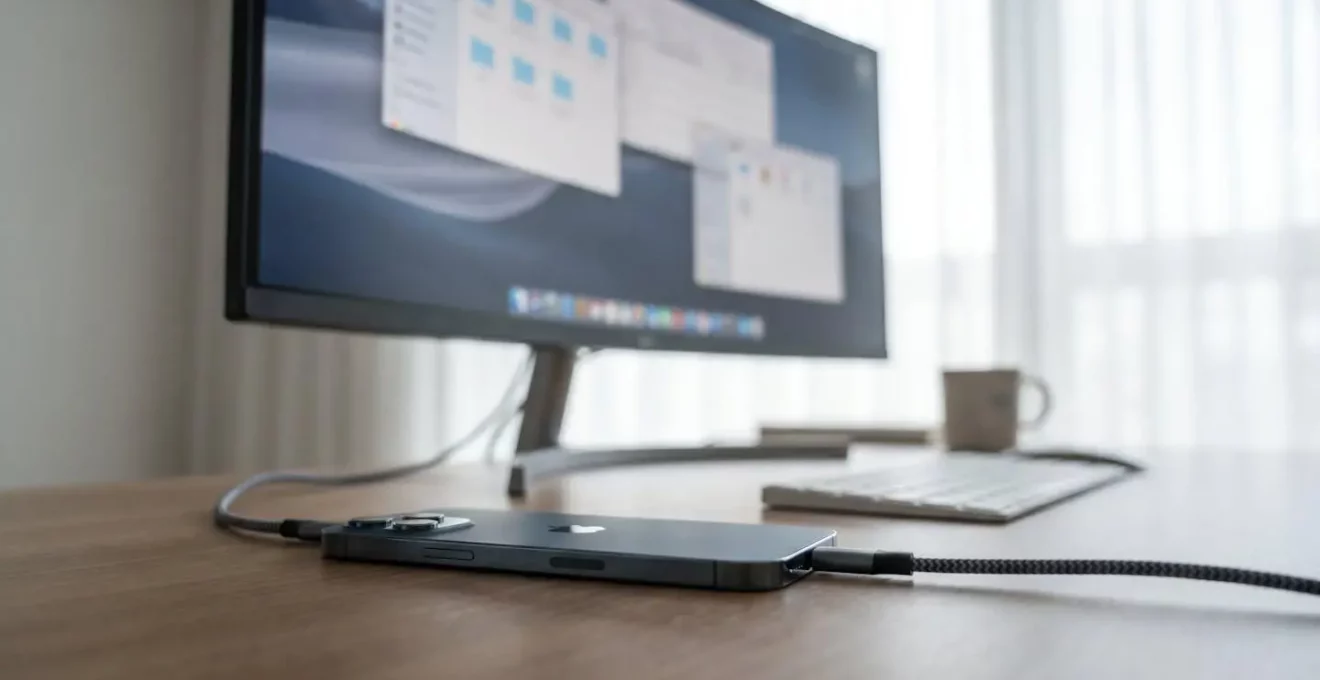
In summary:
- Your phone slows down not because it’s weak, but due to thermal throttling—a self-protection mechanism against heat.
- Lag isn’t just about RAM capacity; it’s often a memory bandwidth or storage speed bottleneck that chokes performance.
- Aggressive background app killing can be controlled by manually setting app priorities and using features like app pinning.
- For sustained peak performance, managing temperature through active cooling (Peltier coolers) is far more effective than software tweaks alone.
- True desktop-class multitasking is achievable through dedicated environments like Samsung DeX, which bypass standard mobile limitations.
It’s the ultimate modern frustration for any power user: your state-of-the-art smartphone, boasting more processing power than a laptop from a few years ago, grinds to a halt. You’re deep into editing a 4K video, juggling multiple research tabs, or in a critical gaming moment, and suddenly, the fluid experience becomes a stuttering slideshow. The common advice is a familiar chorus: clear your cache, close background apps, maybe even a factory reset. These are the digital equivalents of tidying your desk when the real problem is a bottleneck in the building’s power supply.
These surface-level fixes fail because they ignore the fundamental physics and operating system logic governing mobile performance. The issue isn’t a lack of raw power; it’s how that power is managed under extreme thermal and memory pressure. Your device is in a constant battle with heat dissipation and an aggressive OS designed to preserve battery life at all costs, often by terminating the very apps you need open.
But what if the key wasn’t to constantly “clean” your phone, but to master its inherent limitations? This guide moves beyond generic tips to provide a specialist’s framework for achieving sustained, desktop-class performance. We’ll delve into the science of thermal throttling, the hidden rules of Android’s memory hierarchy, and the strategic techniques that allow you to dictate performance, rather than be a victim of it. By understanding and working with your phone’s core systems, you can unlock the consistent, lag-free experience you were promised.
This article provides a structured approach to diagnosing and solving performance issues. We will explore the root causes of slowdowns and present actionable, technique-rich solutions for UK power users who demand more from their mobile devices.
Summary: Mastering Mobile Performance for Desktop-Level Workloads
- Why Does Your Phone Slow Down After 10 Minutes of Gaming?
- How to Keep 10 Apps Running Simultaneously Without Background Refreshes?
- Clip-On Cooler or Software Tweaks: Which Prevents Phone Throttling Better?
- The Hidden Process That Drains 20% of Your Phone’s Processing Power Daily
- When to Run Heavy Tasks: The Temperature Windows That Prevent Throttling?
- The Memory Management Mistake That Closes Your Reference Apps Mid-Task
- Why Does Your Phone Stutter Despite Having More RAM Than Older Laptops?
- How to Run 4 Apps Simultaneously on Android Without Performance Loss?
Why Does Your Phone Slow Down After 10 Minutes of Gaming?
The sudden drop in performance you experience isn’t a bug; it’s a critical self-preservation feature called thermal throttling. Your phone’s System-on-a-Chip (SoC) generates immense heat when the CPU and GPU are running at full tilt. Without a desktop-sized fan, this heat builds up rapidly within the phone’s compact chassis. To prevent permanent damage to the components, the operating system forcibly reduces the chip’s clock speed, effectively trading performance for thermal safety. This isn’t a gradual decline; it’s often a sharp drop known as the “performance cliff.”
Research confirms this is a universal issue across even the most powerful flagship devices. Under a sustained load, it’s common for mobile devices to throttle to 60% of peak performance within a very short window. The first few minutes of a task are like a car’s qualifying lap—full power is available. But the extended session is the race itself, where power must be managed to last the distance without overheating.
Real-World Throttling: The Snapdragon 8 Gen 3 Performance Cliff
Independent testing of the powerful Snapdragon 8 Gen 3 chipset inside a Samsung S24 Ultra provides a stark example. When running the demanding game Genshin Impact at maximum settings, the device throttled to just 60 percent of its peak performance within only 8 minutes. This demonstrates the “performance cliff” phenomenon perfectly: the phone delivers incredible burst speed but must dramatically cut power during extended “race” sessions to manage the inevitable heat buildup.
This reality means that for power users, managing heat isn’t an optional tweak; it’s the primary factor for achieving sustained performance. Your goal is to either reduce the heat generated by a task or improve the device’s ability to dissipate it, thus delaying the onset of throttling. Without addressing the thermal component, no amount of software “cleaning” will prevent your device from slowing down under a heavy, prolonged workload.
How to Keep 10 Apps Running Simultaneously Without Background Refreshes?
One of the biggest hurdles to using a phone for desktop-class work is the operating system’s aggressive memory management. Android is designed to prioritize battery life and the foreground app, so it will ruthlessly terminate background processes to free up RAM. For a power user who needs a browser, a note-taking app, a messenger, and a PDF viewer all active for a workflow, this is disastrous. The solution is not to fight the OS, but to give it clear signals about which apps are critical to your workflow.
Modern Android versions, particularly on skins like Samsung’s One UI, have multiple layers of “optimisation” that you need to consciously manage. By default, the system will put apps to sleep if they haven’t been used for a few days, regardless of your immediate need for them. You must proactively “train” the OS to respect your workflow. This involves delving into settings that most users never touch.
Here are the technical steps to prevent your crucial applications from being terminated:
- Disable Per-App Optimisation: Navigate to `Settings → Apps → [Your App] → Battery → Battery optimization`. From the dropdown, select “All apps,” find your critical application, and choose ‘Don’t optimize’. This is the most direct command to the OS to leave this app alone.
- Turn Off Global Sleep Settings: In `Settings → Device Care`, find the option for ‘Put unused apps to sleep’ and disable it. If this is active, it can override your per-app settings after a few days of inactivity.
- Lock Apps in Memory: This is a powerful, immediate signal. Open your “Recent apps” screen. Find the app you want to protect, long-press its icon at the top of the app window, and select ‘Lock this app’ or ‘Keep open’. The icon will show a padlock, telling the OS not to kill this process even under memory pressure.
- Use Multi-Window Features Strategically: Keeping an app visible in Split-Screen or Pop-up View elevates its priority in the memory hierarchy. The OS is far less likely to terminate a process that is actively displayed on screen, making this a great technique for reference apps.
By combining these techniques, you are moving from a passive user to an active manager of your device’s memory. You are creating a “protected list” of applications that are essential for your productivity, ensuring they are ready the instant you switch to them.
Clip-On Cooler or Software Tweaks: Which Prevents Phone Throttling Better?
When facing thermal throttling, power users have two paths: reduce the heat being generated (software tweaks) or actively remove the heat from the device (hardware solutions). While software adjustments are free and can offer minor gains, for sustained heavy workloads, there is no substitute for active cooling. A hardware cooler directly addresses the root physical problem, whereas software tweaks are merely a compromise.
Software tweaks, like lowering in-game resolution or texture quality, or using built-in OEM tools like Samsung’s Game Booster, work by reducing the load on the SoC. Less work means less heat generated, which delays throttling. This is effective for casual use but comes at the cost of visual fidelity or processing speed. For a professional or creative who needs maximum power, intentionally kneecapping the device is counterproductive. The goal is to run at 100%, not 70%.
This is where active cooling hardware comes in. The most effective solutions are Peltier (thermoelectric) coolers. These devices use an electrical current to create a temperature difference, making one side incredibly cold. When this cold plate is pressed against the back of your phone, it acts as a powerful heat sink, drawing thermal energy away from the SoC and dissipating it into the air with a fan. This direct intervention can dramatically lower the device’s core temperature, allowing it to sustain peak performance for much longer, or even indefinitely.
The following table breaks down the effectiveness of different cooling solutions, demonstrating the clear superiority of hardware for serious use cases.
| Solution Type | Temperature Reduction | Cost Range | Effort Level | Best Use Case |
|---|---|---|---|---|
| Software tweaks (in-game resolution reduction) | 2-4°C | Free | Low (5 minutes setup) | Casual gaming, daily use |
| Fan-only clip-on cooler | 3-5°C | $5-$15 USD | Medium (attachment required) | General gaming sessions under 30 min |
| Peltier (thermoelectric) cooler | 8-12°C | $18-$30 USD | Medium-High (power source needed) | Extended gaming, stationary desktop mode sessions |
| OEM tools (Samsung Game Booster) | 3-6°C | Free (built-in) | Low (per-game profiles) | Optimized gaming without accessories |
For a hardware cooler to be effective, the quality of its thermal interface is paramount. A perfect, flush contact between the cooling plate and the phone’s body ensures maximum heat transfer, as shown in the detailed macro image below.
As the data shows, a Peltier cooler offers a temperature reduction that is 2-3 times more effective than any software tweak. For any UK power user looking to use their phone for video rendering, long coding sessions in DeX mode, or marathon gaming, investing in a quality thermoelectric cooler is not a luxury; it’s a fundamental requirement for unlocking the device’s true potential.
The Hidden Process That Drains 20% of Your Phone’s Processing Power Daily
While the H2 title frames it as “processing power,” the most tangible metric for a user is battery life, which is directly impacted by background CPU and network activity. A significant portion of your phone’s resources isn’t consumed by the app you’re actively using, but by a constant hum of hidden background processes. These include social media apps relentlessly syncing for new notifications, location services pinging satellites, and cloud services checking for files to upload. While each individual process is small, their cumulative effect is a major drain on both battery and system resources.
This constant background activity keeps the CPU in a higher-power state more often than necessary, contributing to low-level heat generation and consuming precious processing cycles that could be allocated to your foreground task. In fact, research shows the impact is substantial; left unchecked, up to 40% of battery life can be consumed by background apps and their sync or location services. This figure serves as a powerful proxy for the amount of system resources being quietly siphoned away from your primary tasks.
For a power user, taming this digital noise is crucial. The goal is to shift from an “always-on” sync model to an “on-demand” one. You don’t need every app to check for updates every minute of the day. By auditing your apps’ permissions and background activity settings, you can reclaim a significant chunk of your phone’s performance. Focus on restricting background data and location access for apps that don’t absolutely need it. For example, a photo editing app rarely needs to run in the background, whereas a messaging app does. Making these distinctions is key.
A more advanced technique involves using modes and routines (available on Samsung, Pixel, and other devices) to automate this. You can create a “Focus Mode” that automatically restricts background data for a list of non-essential apps, and activate it whenever you begin a demanding task. This acts as a system-wide switch to dedicate all available resources to the work at hand, effectively silencing the hidden processes that eat away at your phone’s performance potential.
When to Run Heavy Tasks: The Temperature Windows That Prevent Throttling?
Just as an athlete performs best within an optimal body temperature range, your phone’s SoC has specific thermal windows for peak performance. Understanding and respecting these temperature thresholds is a proactive way to manage performance and prevent throttling before it even begins. Running a heavy task when your phone is already warm is a guaranteed recipe for a quick performance drop. Conversely, starting a task when the device is cool can significantly extend your lag-free window.
The critical number to watch is the core temperature of the SoC. While this varies slightly between chips, independent thermal testing demonstrates that most phones begin to thermal throttle when the core temperature hits the 42-45°C range. What’s more important is how ambient conditions affect the time it takes to reach this threshold. A phone running a heavy task in a 35°C environment might start throttling in just 8 minutes, whereas the same task in a cooler 25°C room could run for over 18 minutes before performance drops. This highlights the importance of your physical environment.
Power users should treat temperature not as a consequence, but as a resource to be managed. This means actively monitoring your device’s thermals and choosing the right moments to initiate demanding workloads like compiling code, rendering video, or starting a long gaming session. Don’t start a render right after your phone has been sitting in a warm car or charging, as it’s already near the amber zone.
To move from guessing to data-driven management, you need the right tools and a clear action plan. The following checklist provides a framework for active thermal monitoring.
Your Action Plan: Active Thermal Monitoring
- Install Monitoring Tools: Download a reliable system monitoring app like DevCheck or CPU-Z. Use their widgets or overlays to get a real-time view of your SoC and battery temperatures.
- Identify the ‘Green Zone’ (Below 38°C): This is the optimal state for starting and sustaining any heavy task. Performance will be at its peak with minimal risk of near-term throttling.
- Recognize the ‘Amber Zone’ (38-44°C): If your phone enters this range, it’s a warning. Consider reducing the workload intensity, taking a brief break, or applying active cooling to prevent an imminent performance drop.
- Avoid the ‘Red Zone’ (Above 45°C): At this point, throttling is already active. Cease intensive tasks immediately. Pushing the device further will not yield more performance and risks long-term battery degradation.
By internalizing these temperature zones, you can develop an instinct for when your device is ready for a sprint and when it needs to rest, fundamentally changing how you manage performance for sustained, predictable power.
The Memory Management Mistake That Closes Your Reference Apps Mid-Task
A common and deeply ingrained user habit is to “clean” the recent apps screen by swiping away applications. This is often done with the belief that it “frees up RAM” and speeds up the phone. For a power user, this is one of the most counterproductive actions you can take. When you swipe an app away, you are sending an explicit user command to the OS to terminate that process. You are overriding Android’s own intelligent caching system, which keeps frequently used apps in a low-power state for a near-instant relaunch.
When you force-close an app and then need it again moments later, the system has to load it from scratch. This process involves reading data from the much slower internal storage and loading it back into RAM, causing a noticeable delay and a spike in CPU usage—the very thing you were trying to avoid. This is why so-called “RAM cleaner” or “booster” apps are fundamentally flawed; they engage in a constant, pointless war with the OS, force-closing cached processes that Android was keeping ready for a reason.
The correct approach for a power user’s workflow is not to close apps, but to signal to the OS which ones are important. You need to differentiate between temporary apps you are finished with and reference apps (like a research document, a chat window, or a calculator) that you need to remain available. Swiping them all away treats them as equally disposable.
To avoid this critical mistake and ensure your reference apps are always ready, follow these principles:
- Stop Swiping: Break the habit of clearing your recent apps screen. Let the OS manage the memory. Only swipe away an app if it has crashed or is misbehaving.
- Use the ‘Lock App’ Feature: As mentioned before, this is your primary tool. Go to the Recent Apps screen, find your reference app (e.g., your PDF reader or browser), and explicitly lock it. This tells the OS, “This one is off-limits.”
- Leverage Split-Screen Mode: Keeping a reference app visible on one half of the screen is a powerful way to ensure it stays in memory, as the OS gives high priority to visible processes.
By unlearning the “swipe to clean” habit and adopting a “lock to protect” strategy, you align your actions with how the Android memory manager is designed to work, resulting in a much smoother and more responsive multi-app experience.
Why Does Your Phone Stutter Despite Having More RAM Than Older Laptops?
It’s a paradox that frustrates many power users: your phone has 12GB or even 16GB of RAM, far more than many capable laptops, yet it can still stutter when juggling heavy apps or large files. The reason is that raw RAM capacity is only one part of the performance equation. The critical, and often overlooked, factor is memory bandwidth—the speed at which data can be moved between the RAM, the SoC, and the phone’s internal storage.
Think of RAM capacity as the size of a car park and memory bandwidth as the width of the entrance ramp. You can have a massive car park (high RAM capacity), but if the entrance is a single narrow lane (low bandwidth), you’ll have a traffic jam. Cars (data) can’t get in and out quickly enough, and the whole system grinds to a halt. This is the bottleneck that causes stuttering, even with plenty of “free” RAM available.
This bottleneck is exacerbated by the different types of memory in your phone. Modern phones use fast LPDDR5 RAM, but they also rely on UFS 3.1 or 4.0 flash storage. While incredibly fast for storage, it’s still significantly slower than RAM. When you switch between many large apps, the system might need to move data between these different memory tiers, and the speed of that transfer is limited by the system’s overall bandwidth.
The image above perfectly visualizes this concept. The wide, open space represents your large RAM capacity, but performance is ultimately dictated by the narrowest point in the system—the bandwidth bottleneck. This is why simply adding more RAM doesn’t always solve performance issues. A well-balanced system with slightly less RAM but higher bandwidth can feel much smoother than a system with huge capacity but a constrained data pathway.
For a power user, this means being mindful of tasks that are bandwidth-intensive. Editing a large 4K video file directly from internal storage, for example, puts immense strain on the memory bus. When possible, working with smaller proxy files or ensuring your primary work files are fully loaded into RAM can help mitigate this bottleneck. It also explains why a clean reboot can sometimes feel faster: it clears out all the data traffic, allowing the system to start with an open “highway.”
Key Takeaways
- Sustained performance is a game of thermal management. Throttling is a physical inevitability that can only be truly managed with active cooling.
- Effective multitasking relies on teaching the OS your priorities using tools like app locking, not by using counterproductive “RAM cleaners.”
- Raw RAM capacity is misleading. True performance for heavy tasks depends on memory bandwidth and storage speed, which can become a bottleneck.
How to Run 4 Apps Simultaneously on Android Without Performance Loss?
Running multiple apps simultaneously on a standard mobile interface is inherently inefficient. Split-screen is limiting, and constantly switching between full-screen apps breaks focus and forces the OS to juggle memory priorities. To achieve true, desktop-class multitasking without performance loss, you need to transition to an environment designed for it. For many UK power users on the Android platform, the ultimate solution is a dedicated desktop mode, with Samsung DeX being the most mature and powerful example.
DeX (Desktop Experience) is not just screen mirroring. It transforms your Galaxy phone or tablet into a legitimate desktop computing environment when connected to an external monitor, TV, or even a laptop. It provides a familiar windowed interface, complete with a taskbar, start menu, and full mouse and keyboard support. This fundamentally changes the multitasking paradigm. Instead of the OS deciding which app to kill, you have full control over multiple, resizable windows running concurrently on a large screen.
This approach bypasses many of the standard mobile limitations. Because it’s intended for a stationary, powered setup (often connected via a USB-C dock), thermal and battery constraints become less critical. You can pair it with a thermoelectric cooler for virtually unlimited sustained performance, creating a silent, powerful, and portable workstation.
The Power User’s Workflow with Samsung DeX
Samsung DeX enables a workflow that is impossible on a standard mobile UI. A user can have a web browser open on one side of the screen for research, a Microsoft Word document on the other for writing, a Slack or Teams window in the corner for communication, and a music player running in the background. All these applications remain open, active, and instantly accessible, just as they would on a Windows or macOS machine. DeX can be accessed wirelessly or, for maximum performance and charging, via a simple USB-C to HDMI adapter, turning any screen into a powerful productivity hub driven entirely by the device in your pocket.
For any power user pushing their device to its limits, the goal should be to move beyond the constraints of the handheld interface for serious work. By embracing a desktop mode like DeX, you are not just running apps on your phone; you are leveraging your phone’s powerful SoC to drive a true multi-window, multi-tasking environment, finally delivering on the promise of a desktop in your pocket without the performance compromises.
Start applying these thermal and memory management techniques today. By moving from a passive user to an active system manager, you can transform your powerful smartphone from a device that merely runs apps into a reliable, high-performance workstation for your most demanding tasks.