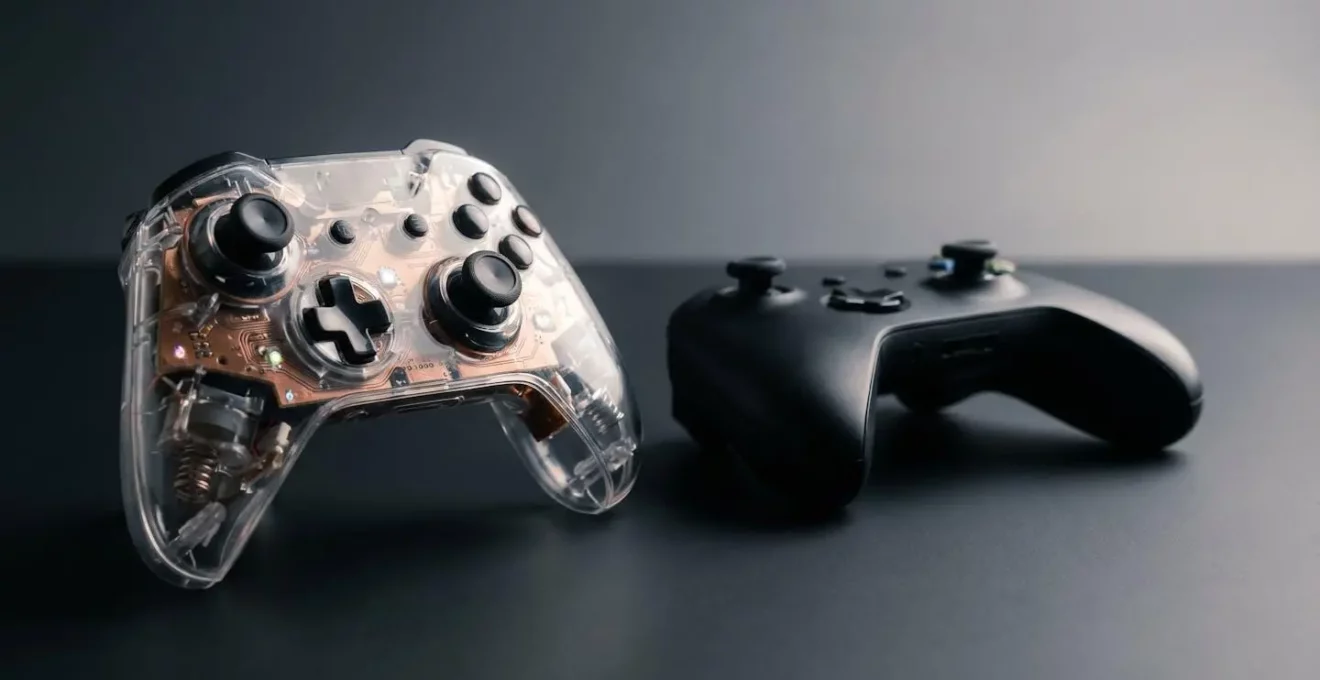
Your premium controller’s performance isn’t a myth; it’s just locked behind default settings, hardware tolerances, and common misunderstandings about latency.
- True responsiveness comes from meticulously calibrating dead zones to match your hardware’s unique physical limits, not just chasing marketing milliseconds.
- Preventative maintenance is the most cost-effective way to stop physical degradation like stick drift, which is often mistaken for input lag.
Recommendation: Stop relying on manufacturer presets and start actively tuning your entire gaming setup—from controller firmware to display settings—to unlock the performance you paid for.
You’ve just unboxed it: a £150 pro controller, gleaming with customisable parts and promising near-instantaneous response times. You jump into your favourite competitive shooter, expecting a significant upgrade over the standard gamepad, only to be met with a frustrating reality. Your aim feels floaty, movements seem slightly disconnected, and you’re left wondering if you’ve fallen for a marketing gimmick. This experience is incredibly common among UK console gamers who invest in high-end accessories. The immediate assumption is that the controller is faulty or that the advertised benefits are simply a placebo.
The conventional wisdom often suggests you just need to “get used to it” or that only professional esports athletes can truly benefit from such marginal gains. While there’s a kernel of truth in that, it overlooks the core issue. The problem isn’t always about raw wireless latency or a defective product. Instead, the perceived sluggishness of a premium controller is often a symptom of a deeper “calibration mismatch” between the hardware’s physical tolerances, the game’s software settings, and the player’s own muscle memory. The default settings are designed for the masses, not for your specific device or playstyle.
But what if the solution wasn’t to return the controller, but to understand the interconnected system it operates within? The key to unlocking that expensive peripheral’s true potential lies not in its advertised response time, but in mastering the unseen forces of dead zones, stick drift prevention, and the console’s own hidden capabilities. This guide moves beyond the marketing hype to provide a value-assessing, performance-focused breakdown of why your controller feels off and delivers the actionable steps to fix it. We will diagnose the real culprits behind perceived lag, provide a maintenance routine to ensure long-term precision, and reveal how to leverage your console’s full power for a genuinely enhanced gaming experience.
This article will guide you through the technical nuances and practical adjustments that transform a frustrating investment into a tangible competitive advantage. Below is a summary of the key areas we will explore to help you master your high-performance gear.
Summary: Unlocking Your Controller’s Hidden Performance
- Why Do Pro Controllers Advertise Response Times Most Gamers Can’t Perceive?
- How to Adjust Dead Zones and Sensitivity for Better Aiming Accuracy?
- Wired or Wireless Controller: Does the Latency Difference Actually Matter?
- The Cleaning Routine That Prevents £60 Stick Drift Replacements
- When to Buy Controllers: The Launch Window That Includes Extended Warranty?
- Why Does Your PS5 SSD Enable Game Mechanics That Were Impossible Before?
- Why Do DualSense Haptics Feel More Precise Than Standard Rumble?
- Are You Using Only 30% of Your PS5’s Capabilities Without Knowing It?
Why Do Pro Controllers Advertise Response Times Most Gamers Can’t Perceive?
The headline feature of almost every pro controller is its ultra-low latency, often marketed in single-digit milliseconds. While these figures are technically accurate, they target a psychological need for a competitive edge more than a tangible performance barrier for the average player. The human threshold for perceiving input lag is a subject of debate, but it’s a crucial concept to understand. For most people, the difference between 4ms and 8ms is functionally imperceptible. It’s only in highly controlled environments that the benefits become apparent; for instance, some research on input latency in gaming suggests that expert players in fast-paced FPS games can perceive latency differences as low as 15ms.
This means that for the vast majority of the player base, the advertised numbers are below their own perceptual threshold. The feeling of improved responsiveness often comes from other factors included in pro controllers, such as higher polling rates (how often the controller reports its position to the console), more stable wireless connections, or superior ergonomics that facilitate quicker physical movements. The tiny reduction in input latency itself is rarely the game-changer it’s made out to be.
This leads to a discussion within the gaming community about the power of the placebo effect. As one analysis of controller technology notes, the obsession with minimal latency can be misleading. As one gamer in a technical discussion on the GBAtemp community forums put it, “it usually boils down to a placebo effect because current wireless technology is advanced enough.” When you believe a £150 controller is faster, your brain may interpret your gameplay as being more responsive, even if the measurable advantage is negligible. The real value is often found not in the milliseconds shaved off the connection, but in the customisation and build quality that these premium devices offer.
How to Adjust Dead Zones and Sensitivity for Better Aiming Accuracy?
If ultra-low latency isn’t the magic bullet, what is? The single most impactful adjustment you can make for aiming accuracy is calibrating your controller’s dead zones. A dead zone is a small area around the analogue stick’s centre where input is deliberately ignored. This is a necessary software filter to prevent “stick drift”—unwanted camera or character movement caused by the stick not returning perfectly to its neutral position due to manufacturing tolerances or wear and tear. However, a dead zone that is too large can make your controller feel sluggish and unresponsive, as it requires a more significant thumb movement before any input is registered. This is a classic example of a calibration mismatch.
The goal is to find the lowest possible dead zone setting where you experience no stick drift. This provides maximum responsiveness without sacrificing stability. Most games offer in-game sliders for this, but a more scientific approach involves using an external tool. Setting your in-game dead zone to zero and using a PC-based tool like Gamepad Tester allows you to see the raw data from your controller. You can observe the “Avg Deviation” to understand your hardware’s unique physical noise and set your dead zone just above that level, creating a perfect balance.
Furthermore, the optimal dead zone setting can vary dramatically depending on the game genre. Fast-paced shooters demand minimal dead zones for rapid, precise aiming adjustments, while racing simulators benefit from larger dead zones to prevent twitchy steering. The response curve, which dictates how sensitivity ramps up as you move the stick, is another critical layer of customisation that works in tandem with dead zone settings.
For a practical starting point, this table outlines common dead zone settings by genre, which you can use as a baseline for your own fine-tuning. According to a comparative analysis from Turtle Beach, different games benefit from very different configurations.
| Game Type | Right Stick (Aim) | Left Stick (Movement) | Response Curve |
|---|---|---|---|
| Call of Duty / FPS | 3-5% | 5-8% | Dynamic |
| Apex Legends | 0-3% | 5-8% | Linear |
| Battlefield | 0% | 5-8% | Standard |
| Racing / Simulation | Larger (5-10%) | Larger (8-12%) | Linear |
Wired or Wireless Controller: Does the Latency Difference Actually Matter?
The age-old debate of wired versus wireless controllers continues to fuel arguments in gaming forums, with the common wisdom being that a wired connection is always superior for competitive play due to lower latency. While this was unequivocally true in older console generations, modern wireless technology has dramatically closed the gap. Today, the choice is far more nuanced, and for many gamers, the practical difference in system latency—the total delay from input to on-screen action—is negligible.
High-quality modern controllers using a dedicated 2.4GHz wireless connection (via a USB dongle) exhibit extremely low latency, often only a few milliseconds higher than their wired counterparts. For example, testing data shows that a typical wired connection might have 1.0-3.0ms of latency, while a 2.4GHz wireless connection sits around 3-6ms. The real performance drop-off comes from standard Bluetooth connections, which can introduce 16ms or more of latency. Therefore, for a pro controller, the difference between its wired and dedicated wireless mode is well below the human perceptual threshold.
Intriguingly, on some platforms, a wired connection can be counterintuitively *slower*. A notable case study emerged within the PlayStation community, where players discovered a peculiar issue. Many competitive players have reported that using a PS5 DualSense controller in wired mode can actually introduce more polling latency than when using the console’s highly optimised proprietary wireless connection. This phenomenon, where the USB polling rate is less efficient than the wireless protocol, debunks the universal assumption that “wired is always faster.” It highlights that the entire ecosystem—controller, software, and console hardware—must be considered.
Ultimately, for most players, the freedom and comfort of a wireless setup far outweigh the imperceptible latency difference of a few milliseconds. Unless you are an elite esports professional where every fraction of a second counts, or you are using an older Bluetooth-only controller, your choice should be based on convenience rather than a misplaced fear of “lag.”
The Cleaning Routine That Prevents £60 Stick Drift Replacements
One of the most common reasons a premium controller begins to feel unresponsive or erratic is not electronic failure but simple physical contamination. Stick drift, the dreaded phantom movement that plagues so many gamepads, is frequently caused by the accumulation of dust, skin cells, and other microscopic debris inside the analogue stick mechanism. This build-up interferes with the internal potentiometers that measure the stick’s position, leading to incorrect readings. Before assuming your controller is broken and spending £60 or more on a replacement, a disciplined cleaning routine can often restore its precision and prevent the issue from occurring in the first place.
This preventative maintenance is crucial for protecting your investment. In fact, technical analysis shows that dust and debris account for over 60% of the issues leading to stick drift, making it a largely preventable problem. A simple 5-minute monthly ritual can drastically extend the life of your controller’s most vulnerable components. The key is to use the right tools and materials to dislodge particles without causing damage or leaving residue. High-concentration isopropyl alcohol (90%+) is essential because it evaporates quickly and cleanly, unlike lower-concentration variants which can leave moisture behind.
Ignoring this simple maintenance means you are allowing hardware tolerance issues to develop over time. What starts as a minor inaccuracy can escalate into full-blown, game-breaking drift. By proactively cleaning the joystick base and other crevices, you are not just cleaning the controller; you are preserving its mechanical integrity and ensuring the software doesn’t have to fight against physical imperfections. This is the most cost-effective performance upgrade you can perform.
Your 5-Step Controller Health Checklist: Monthly Maintenance
- Dislodge Debris: Use compressed air to spray short bursts around the base of each joystick while gently rotating the stick. This will blow out loose dust and particles from the internal mechanism.
- Deep Clean: Lightly dampen a cotton swab with 90%+ isopropyl alcohol. Carefully clean around the circular base of the joystick and the seams of the controller shell to dissolve oils and grime.
- Detail Crevices: Employ an anti-static brush, like one used for camera lenses, to gently sweep out dust from the gaps between buttons, D-pad, and the stick housing itself.
- Surface Wipe-Down: Use a clean microfiber cloth to wipe down all surfaces of the controller. This removes skin oils that attract and trap dust particles.
- Evaporation and Rest: Allow the controller to air dry for at least 5-10 minutes before use to ensure all the isopropyl alcohol has fully evaporated.
When to Buy Controllers: The Launch Window That Includes Extended Warranty?
Beyond performance tuning, a strategic approach to purchasing can also save you significant money and frustration. The timing of your purchase matters. Buying a new controller model right at launch can be risky, as early production runs are more prone to undiscovered hardware flaws (like the initial stick drift issues that plagued some next-gen controllers). Waiting a few months for the “second wave” of production often means you’re getting a device where minor manufacturing kinks have been ironed out. However, an even smarter strategy involves leveraging benefits you may already have.
A little-known but powerful consumer protection is the extended warranty offered by many major credit cards. Before buying any expensive electronic accessory, check your card’s terms and conditions. As a consumer electronics benefits analysis points out, “many major credit cards (like American Express or premium Visa/Mastercards) automatically add an extra year of warranty to electronics purchases on top of the manufacturer’s warranty.” This can effectively double your protection against issues like stick drift or button failure, giving you peace of mind and saving you from a costly out-of-pocket replacement. This benefit turns your credit card into a free insurance policy for your gaming gear.
This financial foresight is part of a holistic, value-assessing approach to gaming. It’s not just about the hardware’s performance but also its long-term reliability and cost of ownership. Combining a strategic purchase timing with credit card benefits creates a safety net. If preventative maintenance fails and your controller develops a fault just outside the standard one-year manufacturer warranty, this free extended warranty can be a lifesaver. It’s a simple check that can save you the full price of a new controller down the line.
Why Does Your PS5 SSD Enable Game Mechanics That Were Impossible Before?
The conversation about responsiveness often focuses on the controller, but the console’s internal hardware plays an equally vital role. The PlayStation 5’s custom solid-state drive (SSD) is more than just a tool for faster loading screens; its incredible I/O throughput (input/output speed) has fundamentally changed what is possible in game design, enabling gameplay mechanics that were simply impossible on previous generations of hardware. This directly impacts the feeling of a seamless and responsive game world.
The most prominent example of this is the “rift-hopping” mechanic in Insomniac Games’ *Ratchet & Clank: Rift Apart*. This feature, which allows the player to instantly jump between vastly different, fully rendered worlds, is a direct technical demonstration of the PS5 SSD’s power. On older consoles, such a transition would have required a lengthy loading screen or a disguised loading corridor (like a slow elevator ride or a long, empty hallway) to stream the necessary assets from the slow hard disk drive (HDD). The PS5’s architecture, including its dedicated I/O co-processor and advanced “Kraken” decompression technology, allows for massive amounts of game data to be loaded into memory almost instantaneously.
Case Study: Ratchet & Clank: Rift Apart’s Instant World-Hopping
Insomniac Games’ *Ratchet & Clank: Rift Apart* showcases the PS5’s SSD capabilities through its signature rift-hopping mechanic, which allows players to jump between entirely different worlds in under one second. This gameplay feature is fundamentally a technical demonstration of data streaming speed. Old-generation consoles would have required long loading corridors or elevator sequences to mask the asset loading, but the PS5’s dedicated I/O co-processor with Kraken decompression enables real-time asset streaming that makes instant dimensional travel possible as a core game mechanic.
This ability to stream assets in real-time means developers can create larger, more detailed, and more dynamic environments without the traditional constraints. It allows for game worlds that feel more cohesive and alive, where the player can move at high speeds through dense areas without pop-in or stutter. This contributes significantly to the overall feeling of responsiveness, as the game world itself can react to the player’s actions without delay. The SSD isn’t just making games load faster; it’s removing the invisible walls and technical bottlenecks that once defined the limits of level design.
Why Do DualSense Haptics Feel More Precise Than Standard Rumble?
Another key component of the modern gaming experience that is often misunderstood is the feedback you feel in your hands. The haptic feedback in the PS5’s DualSense controller feels vastly more precise and nuanced than the traditional rumble of previous generations. This isn’t just an incremental improvement; it’s the result of a complete technological shift in how feedback is generated. Understanding this difference is key to appreciating why certain in-game actions feel more impactful and informative.
Standard rumble technology, found in most older or third-party controllers, relies on one or two simple Eccentric Rotating Mass (ERM) motors. These are essentially small, off-balance weights that spin to create a vibration. They can vary in intensity (spinning faster or slower), but they are fundamentally imprecise and can only produce a generalised buzzing sensation. This is why in older games, the feedback for an explosion often feels similar to the feedback for driving over a rough surface.
The DualSense controller, by contrast, uses a far more sophisticated system. As a technical analysis of controller haptics explains, “The DualSense uses highly-calibrated linear actuators or ‘voice coil actuators’ (LRAs), similar to the technology in a speaker.” Instead of a spinning weight, these actuators use electromagnetic coils to move a mass back and forth with incredible speed and precision. This allows them to generate a huge range of frequencies and localised effects. They can replicate the subtle tapping of raindrops, the gritty tension of pulling a bowstring, or the distinct feeling of walking on different surfaces like sand versus metal. This high-fidelity feedback provides players with more information about the game world, enhancing immersion and even providing a competitive edge by signalling environmental changes or enemy actions through touch.
Key Takeaways
- Controller responsiveness is a system problem; focus on dead zone calibration, not just latency marketing.
- Regular, simple cleaning is the most effective way to prevent stick drift and preserve your hardware’s lifespan.
- Modern console features like ultra-fast SSDs and advanced haptics contribute as much to the feeling of responsiveness as the controller itself.
Are You Using Only 30% of Your PS5’s Capabilities Without Knowing It?
You can have the most finely tuned pro controller on the market, but if it’s connected to a system that isn’t properly configured, you are leaving a huge amount of performance on the table. Many gamers invest in a PS5 and a high-refresh-rate display but fail to complete the crucial final steps of configuration. This often means they are unknowingly playing in a less responsive, lower-fidelity mode, effectively using only a fraction of their hardware’s true capabilities. The most common culprits are incorrect HDMI settings and disabled console features.
To unlock the full potential of your setup, you must ensure you are leveraging features like 120Hz output and Variable Refresh Rate (VRR). Running games at 120 frames per second (on supported titles) dramatically reduces the time between frames, which directly lowers system latency and creates a much smoother, more responsive feel. VRR syncs your display’s refresh rate to the console’s frame rate in real-time, eliminating screen tearing and further reducing input lag. However, enabling these features requires a specific chain of settings to be correctly configured on both your TV/monitor and your PS5.
This involves using an HDMI 2.1 cable, activating “Enhanced Format” on your TV’s HDMI port, and enabling the relevant options within the PS5’s video output settings. Forgetting even one of these steps can bottleneck the entire system. Furthermore, ensuring your display is in “Game Mode” is non-negotiable, as this bypasses unnecessary video processing that can add 50-100ms of lag—a far more significant delay than any difference between wired and wireless controllers. Completing this optimisation checklist ensures your entire ecosystem, from thumbstick to screen, is working in harmony to deliver the most responsive experience possible.
The following checklist provides the essential steps to ensure your setup is fully optimised:
- Verify you’re using an HDMI 2.1 cable and port on your TV/monitor.
- Access TV settings and set the HDMI port to ‘Enhanced Format’ or ‘Enhanced 4K’ mode.
- Navigate to PS5 Settings > Screen and Video > Video Output and enable 120Hz Output.
- Enable VRR (Variable Refresh Rate) in the same menu for supported games.
- Activate ‘Game Mode’ on your TV to bypass video processing and reduce display lag by 50-100ms.
By moving beyond marketing claims and adopting a holistic, system-wide approach to performance, you can transform your high-end controller from a source of frustration into a genuine tool for competitive play. Start applying these tuning and maintenance principles today to finally feel the performance you paid for.